🎮 Educator Toolbox - All Features
The Educator Toolbox is your command center for classroom management in Minecraft Education. This guide provides an overview of all available tools.
Accessing the Educator Toolbox
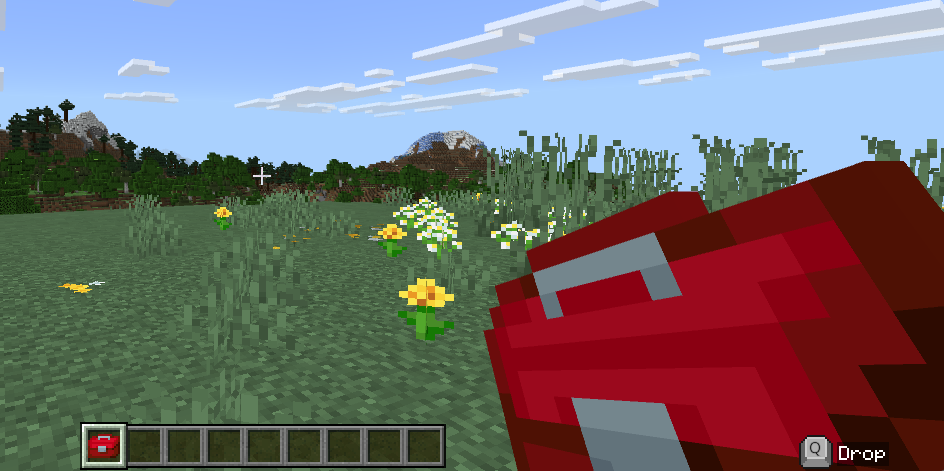
The Educator Toolbox is accessed via a special in-game item that appears automatically in your inventory.
How to open it:
- Find the Educator Toolbox item in your hotbar (bottom row of your inventory)
- Right-click (or interact) with the item
- The main menu opens with all classroom management tools
Tip
Quick Access: Keep the Educator Toolbox in slot 1 of your hotbar. Press the 1 key anytime to quickly select it, then right-click to open the menu.
Teacher Access
Note
Automatic Setup: - ✅ All teachers automatically receive the Educator Toolbox when they join the world - ✅ The toolbox cannot be removed from teacher inventories - ✅ If somehow lost, it can be recovered from the Creative Mode inventory (search for "Educator Toolbox") - ✅ Only teachers have access to the Educator Toolbox - students cannot see or use this item
Tools by Category
Info
Start with Essential Tools first! These 5 features (Custom Nicknames, Assignments, Focus Mode, Lock Players, Letter Blocks) are the most important and offer unique educational capabilities.
All tools are organized into three main categories based on what they help you do:
👥 Student Management Tools
Control where students are, what abilities they have, and what items they possess.
| Tool | Quick Description |
|---|---|
| Teleport | Instantly move students to any location |
| Gamemode | Change between Creative, Survival, Adventure, or Spectator modes |
| Teams Management | Organize students into groups for better management |
| Inventory Management | Give, copy, or clear student items |
View Student Management Tools Guide →
🎓 Classroom Control Tools
Maintain focus, manage behavior, and create structured learning experiences.
| Tool | Quick Description |
|---|---|
| Focus Mode | Dim screens and show a message to get everyone's attention |
| Lock Players | Restrict where students can move with invisible boundaries |
| Timer | Create visible countdown timers for timed activities |
| Assignments | Create tasks and collect student submissions |
| Custom Nicknames | Let students personalize their display names |
View Classroom Control Tools Guide →
🌍 World Management Tools
Control the environment, time, weather, and game rules.
| Tool | Quick Description |
|---|---|
| Time & Weather | Set daytime, night, clear skies, or rain instantly |
| World Settings | Toggle mob spawning, keep inventory, difficulty, and more |
| Manage Health | Control damage, hunger, and player health settings |
| Classroom Limitations | Block specific items (TNT, arrows) and creatures |
View World Management Tools Guide →
Quick Access Guides
New to Educator Tools?
Start with these beginner-friendly guides:
- Quick Start Guide - Get up and running in 5 minutes
- Essential Tools - Master the 5 most important tools first
- Installation - Step-by-step installation instructions
Common Tasks
Jump directly to how-to guides for common classroom tasks:
| Task | Tool to Use |
|---|---|
| Gather all students to one location | Teleport |
| Get everyone's attention | Focus Mode |
| Make it daytime | Time & Weather |
| Give everyone the same materials | Inventory Management |
| Create a timed challenge | Timer |
| Organize students into groups | Teams Management |
| Prevent students from leaving an area | Lock Players |
| Stop students from using TNT | Classroom Limitations |
| Heal all students | Manage Health |
| Switch to Creative mode | Gamemode |
All Tools Alphabetically
Quick reference list of every tool in the Educator Toolbox:
- Assignments - View Guide
- Custom Nicknames - View Guide
- Focus Mode - View Guide
- Gamemode - View Guide
- Inventory Management - View Guide
- Lock Players - View Guide
- Manage Health - View Guide
- Teams Management - View Guide
- Teleport - View Guide
- Timer - View Guide
- World Management (Time, Weather, Settings, Limitations) - View Guide
Tips for Using the Educator Toolbox
Getting Started
💡 Don't try to learn everything at once - Start with Essential Tools (Teleport, Focus Mode, Manage Health, Gamemode, Set Time to Day)
💡 Practice in an empty world first - Try out tools before using them with students
💡 Read the "When to use it" sections - Learn which tool fits which classroom situation
During Class
💡 Keep the toolbox in your hotbar - Put it in slot 1 for quick access (press 1 key)
💡 Combine tools for powerful workflows - Example: Use Focus Mode to explain an activity, then use Timer to track time, then Teleport to gather everyone at the end
💡 Use Teams to save time - Organize students into teams once, then target whole teams with other tools
Common Mistakes to Avoid
❌ Don't use Focus Mode too frequently - Students get fatigued if their screens are constantly dimmed
❌ Don't forget to unlock players - If you lock students to an area, remember to remove the lock when done
❌ Don't rely only on chat - Chat messages scroll away; use Boss Bar or Focus Mode for important info
❌ Don't set up timers without testing - Make sure you know how to pause/edit/delete timers before using in class
Troubleshooting
Problem: I don't see the Educator Toolbox in my inventory
Solutions:
- Check if you're in the Teachers team
- Leave and rejoin the world to trigger the toolbox appearing
- Open Creative inventory and search for "Educator Toolbox"
Problem: A tool isn't working
Solutions: - Check the specific tool's requirements (some need 2+ players online) - Verify Educator Tools pack is active in World Settings → Behavior Packs - Read the tool's guide for common issues
More help: See FAQ and Troubleshooting
Beyond the Toolbox
The Educator Toolbox isn't the only feature in Educator Tools:
Letter Blocks
Special building blocks for creating words, math problems, and signs.
- Letter Blocks - Getting Started - Learn how to use Letter Blocks
- Letter Blocks - Activities - Classroom activity ideas
Extensions
Optional add-ons that expand Educator Tools with additional features.
- Extensions - Browse all available extensions
- More Letter Blocks Extension - Hundreds of new characters and themed backgrounds
Support Resources
- FAQ and Troubleshooting - Common problems and solutions
- Glossary - Minecraft terminology explained
- Getting Help - How to get support
What's Next?
Choose your path:
If you're brand new: → Quick Start Guide - Get started in 5 minutes
If you want to learn the basics: → Essential Tools - Master the 5 most important tools
If you're ready to explore everything: → Student Management Tools → Classroom Control Tools → World Management Tools
If you need help: → FAQ and Troubleshooting → Getting Help
Back to: Home | Installation | Introduction