🚀 Installation Guide
Follow these three simple steps to install Educator Tools in Minecraft Education.
Step 1: Download the Pack
📥 Download the latest release
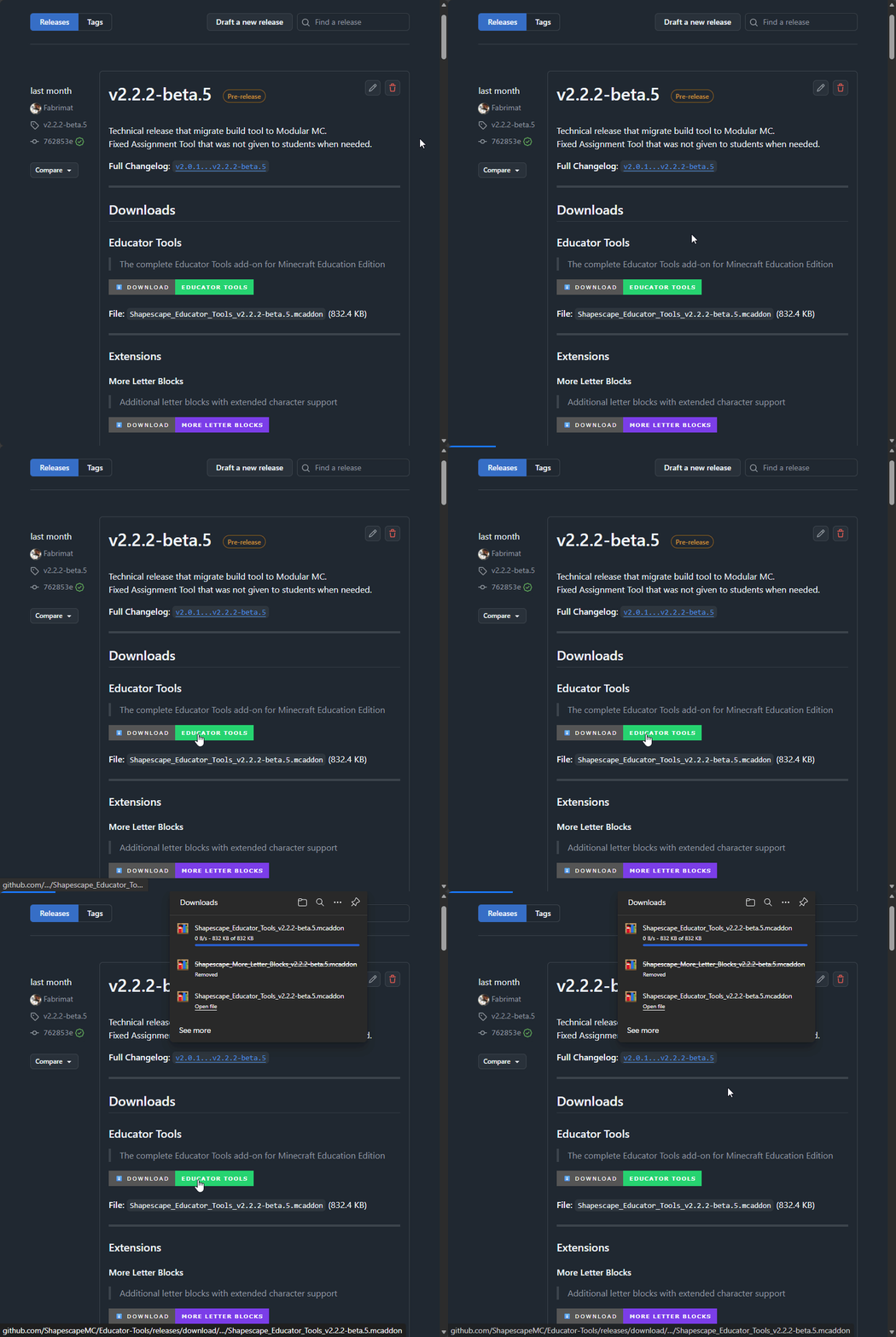
Go to the official GitHub releases page and download the latest version.
- ✅ Visit Educator Tools Releases
- 🔍 Find the Latest Release at the top
- 📥 Click on the download button
- 📂 Save the file to a location you can find (like your Downloads folder)
Info
File to download: Look for a file like educator-tools-v2.1.0.mcaddon, make sure it's the .mcaddon file, NOT the source code zip files!
Step 2: Import into Minecraft
🎮 Import the downloaded pack
Once downloaded, import the pack into Minecraft Education.
Option A: Double-Click (Easiest)
- 📂 Find the
.mcaddonfile you downloaded - 🖱️ Double-click the file
- 🚀 Minecraft Education will launch automatically
- ⚡ The pack imports automatically
- 🔐 Sign in if prompted
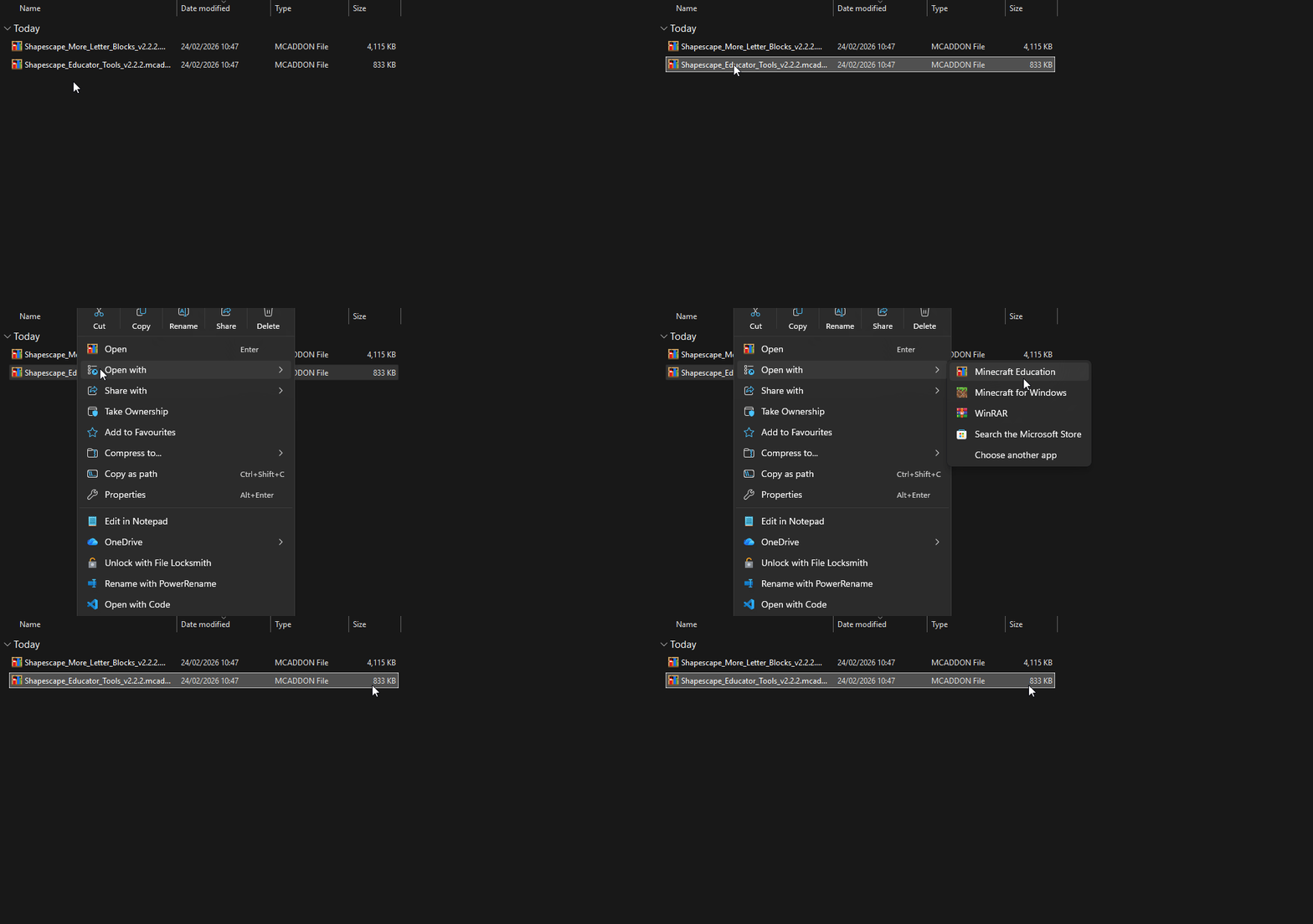
Option B: Right-Click (If you have multiple Minecraft versions)
- 📂 Find the
.mcaddonfile - 🖱️ Right-click the file
- ✅ Select "Open with Minecraft Education"
- 🚀 The game launches and imports the pack
- 🔐 Sign in if prompted
Tip
✅ You'll know it worked when: The game launches and you see a confirmation that the pack was imported.
Warning
If you have both Minecraft Bedrock and Minecraft Education installed, the file might open in the wrong version. Use Option B (right-click) to specify Education.
Step 3: Activate in a World
⚙️ Activate the pack in your world
Now activate the pack in a world (new or existing).
For a New World
- 🚀 Open Minecraft Education
- ▶️ Click "Play"
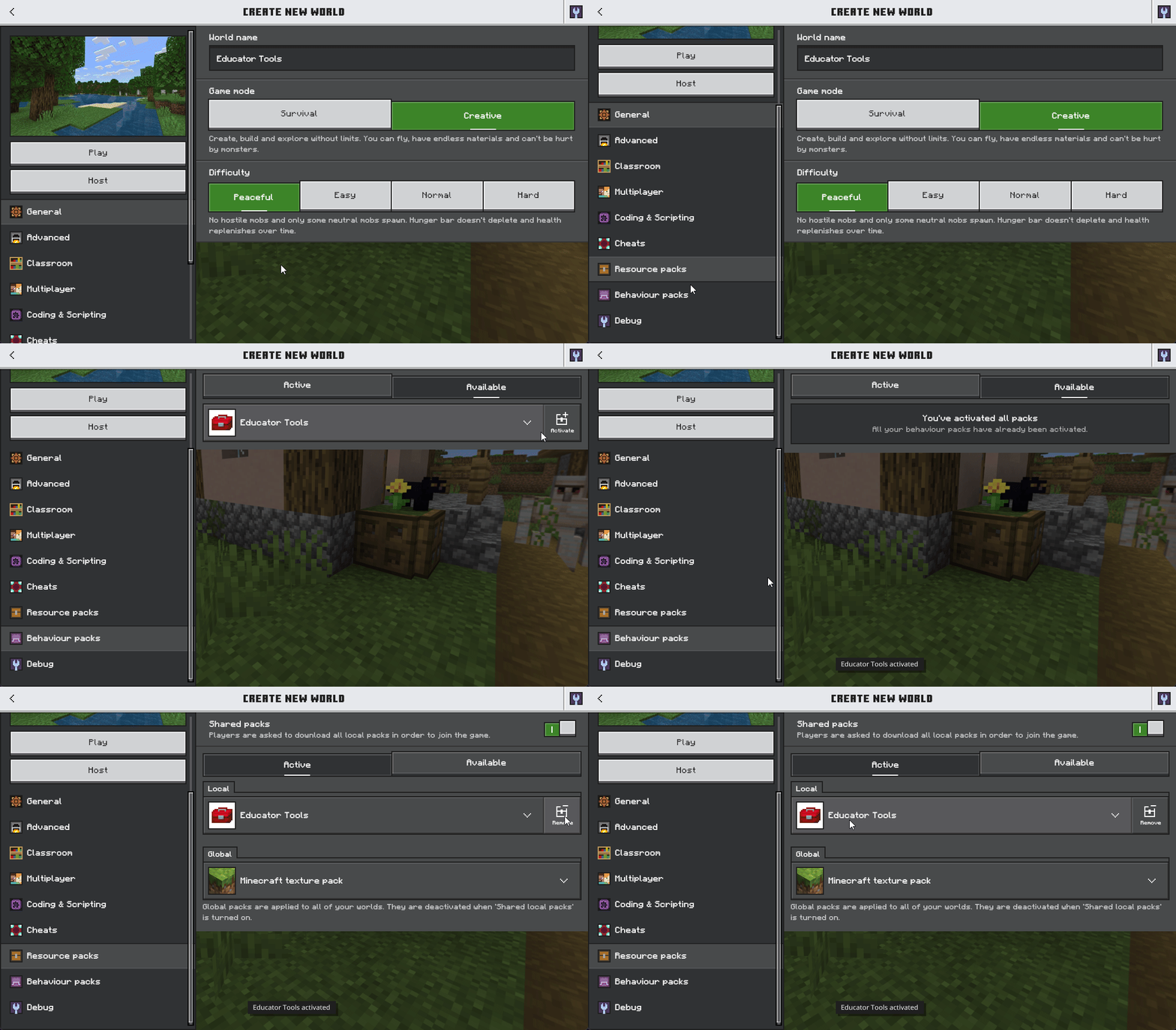
- ➕ Click "Create New World"
- ✏️ Give your world a name
- 📜 Scroll down to "Behavior Packs"
- 🔍 Find "Educator Tools" in the available packs list
- ✅ Click the "+" button to activate it
- 🎨 (Optional) Check "Resource Packs" and activate if it's not already enabled
- 🎉 Click "Create" to create the world
For an Existing World
- 🚀 Open Minecraft Education
- 🌍 Find your world in the worlds list
- ✏️ Click the "Edit" button (pencil icon)
- 📜 Navigate to "Behavior Packs" in the sidebar
- 🔍 Find "Educator Tools" in the available packs
- ✅ Click the "+" button to activate it
- 🎨 (Optional) Check "Resource Packs" and activate if it's not already enabled
- 💾 Click "Save" or "Play"
Note
For existing worlds: Activating Educator Tools in an existing world will add the tools without affecting your builds or progress. Your world data is safe!
Verification: Is It Working?
✅ Check that everything is working correctly
Once you join the world, verify Educator Tools is working:
What to Look For
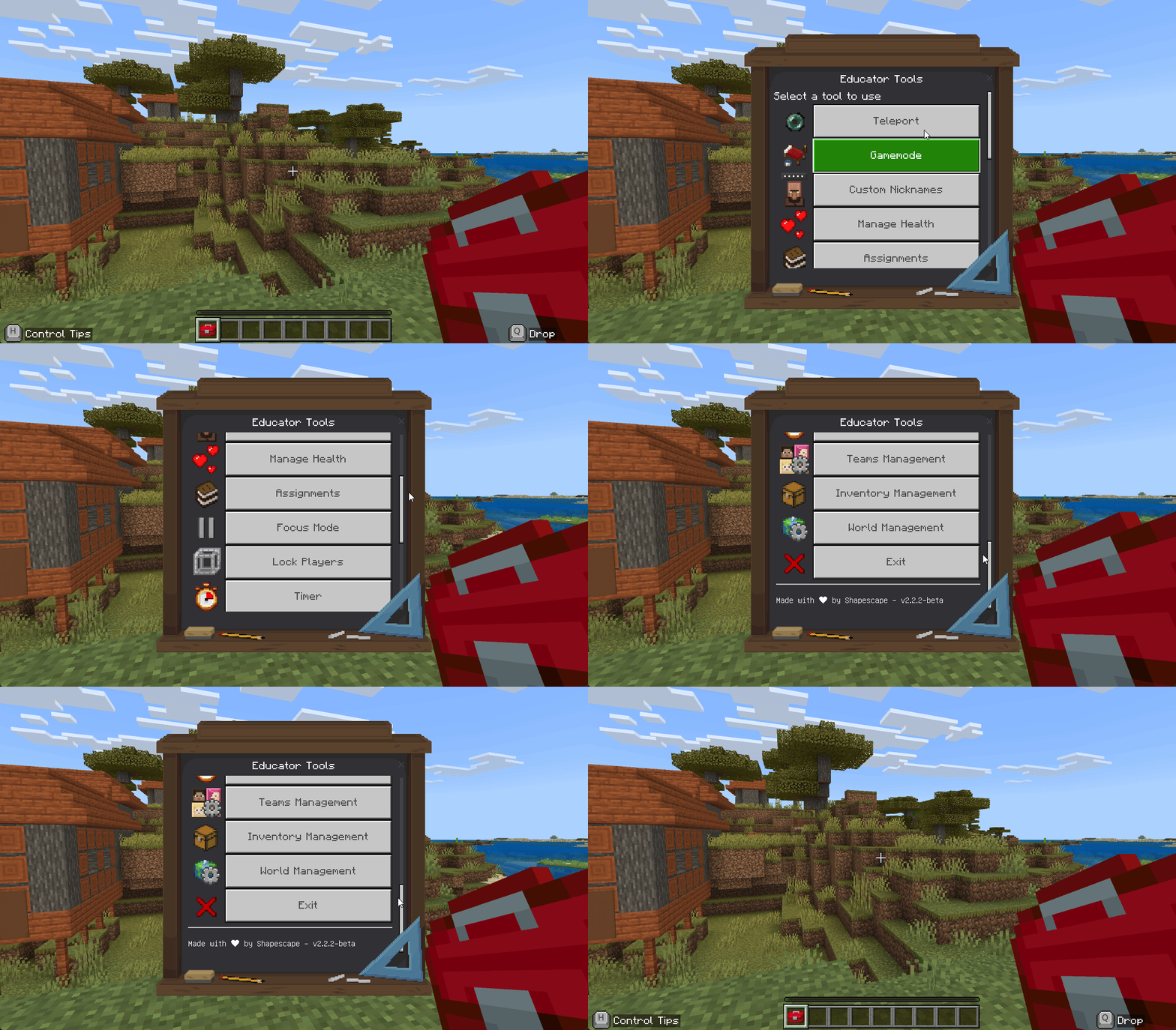
✅ Educator Toolbox item appears in your hotbar (bottom row of your inventory)
✅ Right-click the toolbox and a menu opens with all the classroom tools
✅ Letter Blocks appear in the Creative inventory when you search for "letter"
Tip
The toolbox appears automatically when you join the world. If you don't see it immediately, try leaving and rejoining the world.
If You Don't See the Toolbox
🔧 Click here for troubleshooting steps
Try these solutions in order:
- 🔄 Leave and rejoin the world - The toolbox appears when you join, not when you activate the pack
- 👥 Check you're in the Teachers team - Only teachers get the toolbox automatically. Only the first person loading Educator Tools in the world will receive it automatically
- 📦 Open Creative inventory - Search for "Educator Toolbox" and add it manually
- ✅ Verify pack is active - Go to World Settings → Behavior Packs → Confirm it shows "Active"
- 🆕 Try a new world - Test in a fresh world to rule out world-specific issues
Info
Only teachers should have access to the Educator Toolbox. Students should NOT see it in their inventory.
Troubleshooting
🔧 Common issues and solutions
Problem: The .mcaddon file won't open
Solutions:
- ✅ Make sure you downloaded the
.mcaddonfile (not the source code zip) - 🖱️ Right-click and select "Open with" → Choose "Minecraft Education"
- ⚠️ If you have Minecraft Bedrock installed, it might open in the wrong version - uninstall Bedrock or use "Open with" to specify Education
Info
The source code zip files (Source code.zip) will NOT work. You must download the .mcaddon file.
Problem: Pack doesn't appear in Behavior Packs list
Solutions:
- 🔄 Restart Minecraft Education completely and try importing again
- ⚙️ Check Settings → Storage → Behavior Packs to confirm it imported
- 📥 Re-download the file (it might have corrupted during download)
- ✅ Make sure you're running the latest version of Minecraft Education
Tip
Sometimes the pack imports successfully but doesn't show up until you restart the game completely.
Problem: Pack was working but stopped after an update
Solutions:
- 🔍 Check if Minecraft Education updated recently
- 📥 Visit the releases page for the latest compatible version
- 🗑️ Remove the old version from Settings → Storage → Behavior Packs
- ♻️ Import the new version following Step 2 again
Warning
After Minecraft Education updates, you may need to update Educator Tools to a compatible version.
Problem: Students don't have access to the toolbox
This is expected! Only teachers should have the Educator Toolbox. Students don't need it and shouldn't see it.
Note
This is intentional behavior. The toolbox is designed for teachers only.
If a student can use the toolbox when they shouldn't:
- 👥 They might be in the "Teachers" team by accident
- ⚙️ Use Teams Management to remove them from the Teachers team
Platform-Specific Notes
🖥️📱 Installation instructions for your device
Note
The installation process is similar across all platforms, but there are some platform-specific considerations.
💻 Windows
- ✅ Double-click usually works without issues
- 🖱️ If Minecraft doesn't launch, right-click → "Open with Minecraft Education"
Tip
On Windows, double-clicking the .mcaddon file is the fastest method.
💻 Mac
- ✅ Double-click should work
- 🖱️ If it doesn't, right-click → "Open With" → "Minecraft Education.app"
Danger
Some Mac versions may require you to grant permission to open files from the internet. Check System Preferences → Security & Privacy if prompted.
📱 iPad/Tablet
- 🌐 Download through a browser on the device
- 👆 Tap the downloaded
.mcaddonfile - ✅ Select "Open in Minecraft Education" if prompted
- 🎮 Follow the same activation steps in-game
Tip
On iPad, you may need to navigate to your Downloads folder in the Files app to find the .mcaddon file.
💻 Chromebook
- 🌐 Download the file through Chrome
- 📂 Open Files app → find the
.mcaddonfile - 👆 Tap to open with Minecraft Education
- ⚙️ Activate in world settings
Note
Chromebook users must have Minecraft Education installed from the Google Play Store.
System Requirements
📋 What you need to run Educator Tools
Educator Tools works with:
✅ Minecraft Education (any recent version)
✅ All platforms: Windows, Mac, iPad, Chromebook
✅ Multiplayer worlds (host must have pack activated)
✅ Existing worlds (safe to add to worlds in progress)
Danger
Known limitations: - Requires Minecraft Education (may NOT work with Bedrock Edition) - In multiplayer, the world host must have the pack activated - Some features require Teacher permissions in the world
Next Steps
🚀 Where to go from here
Now that Educator Tools is installed:
- 📖 Quick Start Guide - Learn the basics in 5 minutes
- 🔧 Essential Tools - Master the 5 most important tools
- 🎒 Educator Toolbox - Explore all features
Tip
New to Educator Tools? Start with the Quick Start Guide to get up and running quickly!
Need More Help?
💬 Additional resources
- ❓ FAQ and Troubleshooting - Common problems and solutions
- 🆘 Getting Help - How to get support
- 📚 Glossary - Understand Minecraft terms
Back to: Home | Introduction | Quick Start Guide