🌍 World Management Tools
Control the Minecraft world environment and game rules to create the perfect learning space.
Overview
World Management Tools give you control over time, weather, game rules, and what items or creatures students can encounter. These tools help you create a safe, distraction-free environment focused on learning.
Note
All World Management settings apply immediately and can be changed at any time during class. Teachers are never affected by item or entity restrictions.
Quick Reference
| Tool | What It Does | When to Use It |
|---|---|---|
| ☀️ Time & Weather | Set daytime, night, rain, clear skies | Need good lighting, weather affects activity |
| ⚙️ World Settings | Toggle game rules (mob spawning, keep inventory, etc.) | Customize gameplay for activities |
| ❤️ Manage Health Settings | Control damage, hunger, effects | Building activities, prevent interruptions |
| 🚫 Classroom Limitations | Block specific items and creatures | Safety, reduce distractions, controlled environment |
⏰ Time & Weather Control
Instantly change the time of day and weather in your world, or lock them to stay constant.
Note
Time and weather controls affect the entire world immediately. All players will see the changes at once.
🎯 When to Use It
- ☀️ Visibility: Make it daytime so everyone can see clearly
- 🎨 Atmosphere: Set the mood (sunset for presentations, rain for ambiance)
- 📸 Consistency: Lock time/weather so lighting stays constant for screenshots or videos
- 🛡️ Safety: Prevent night monsters from spawning by keeping it day
- 🌐 Real-world connection: Sync game time with real-world time for immersive learning
How to Use It
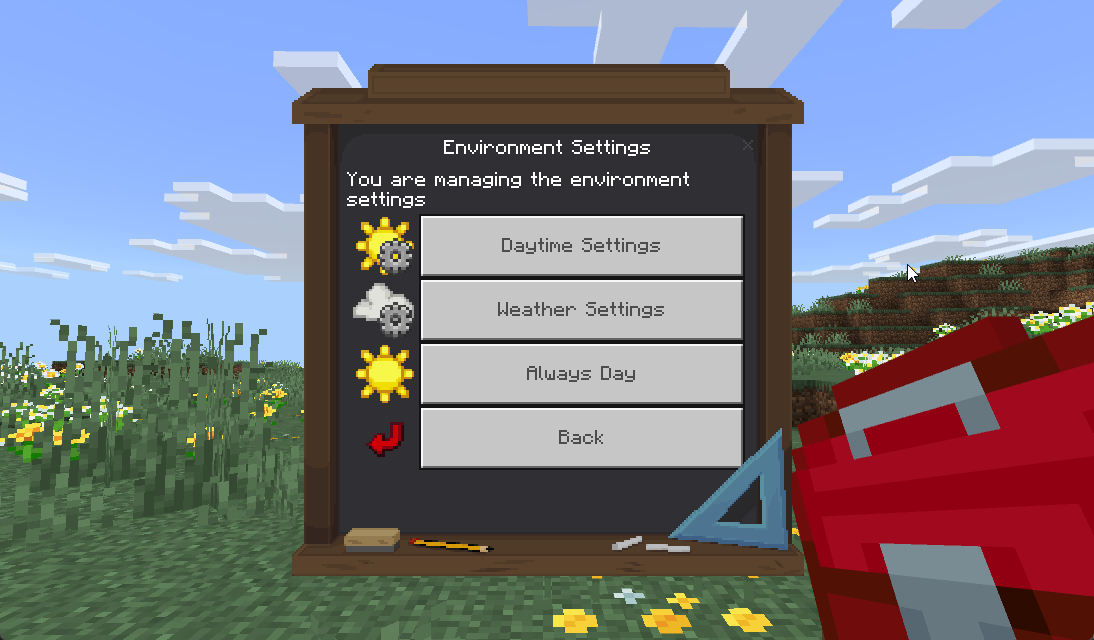
Quick Option: Always Day ⭐
The fastest way to get perfect lighting for classroom use.
Steps:
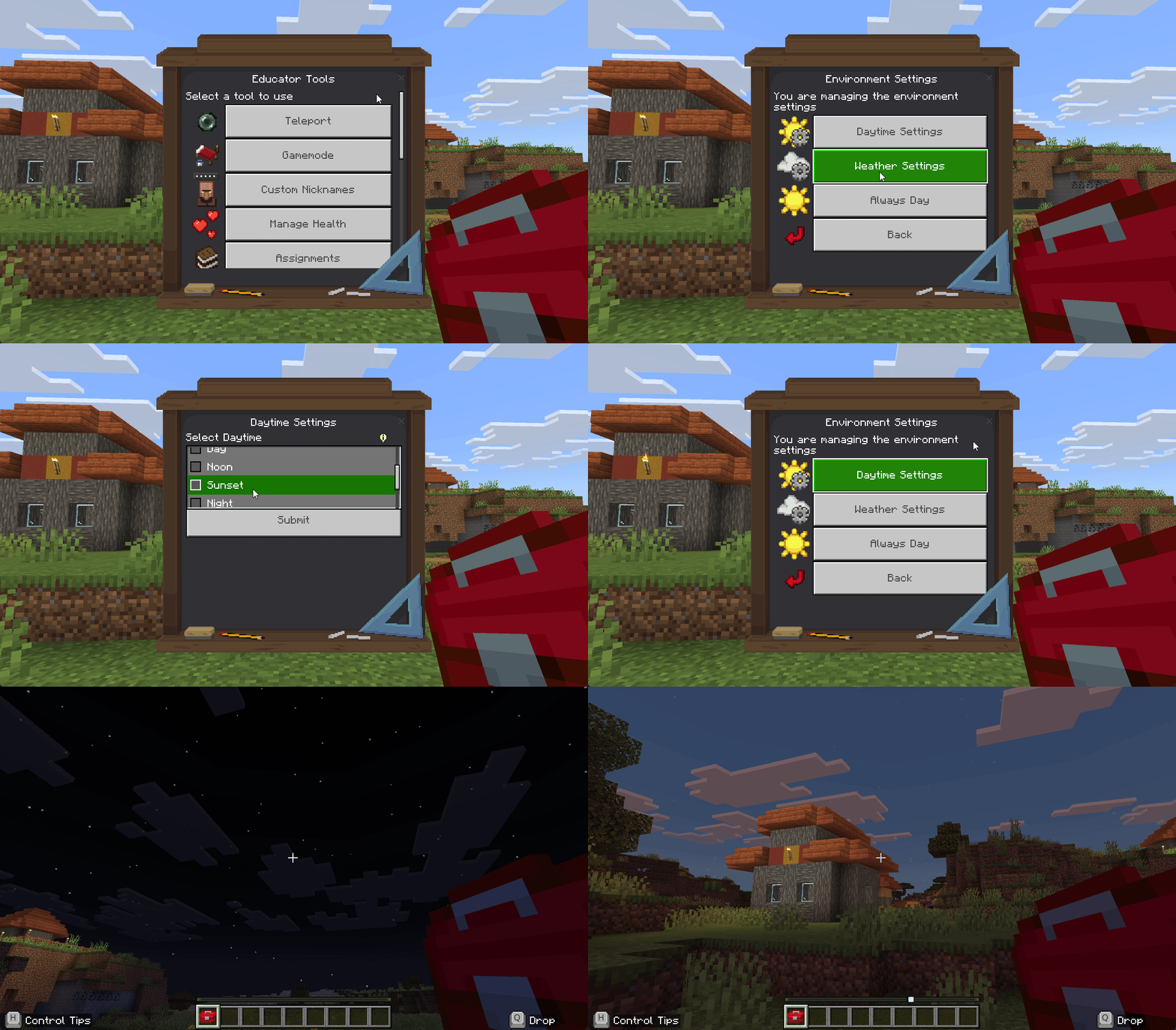
- Right-click the Educator Toolbox in your hotbar
- Click World Management
- Click Environment
- Click Always Day
Tip
Always Day is the recommended setting for most classroom activities. It provides consistent, bright lighting with a single click.
What Always Day Does:
- ☀️ Time sets to noon (brightest, no shadows)
- 🔒 Day/night cycle stops (stays noon forever)
- 🌤️ Weather cycle stops (stays clear)
Set Specific Time
Steps:
- Right-click the Educator Toolbox in your hotbar
- Click World Management
- Click Environment
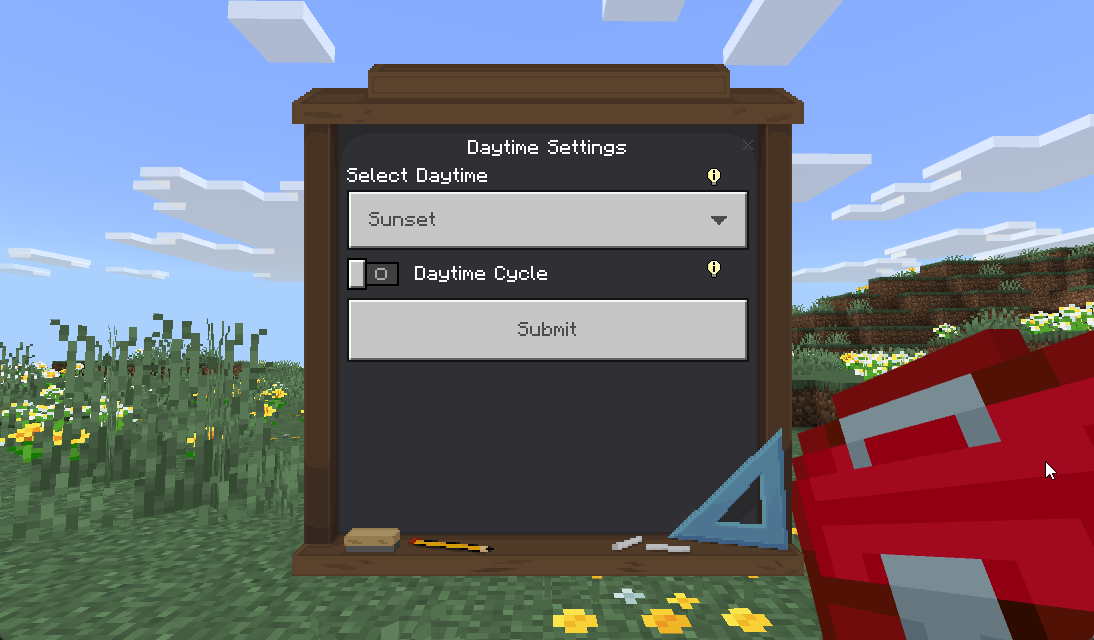
- Click Select Daytime
- Choose your time:
- ☀️ Day - Morning (sunrise just passed)
- 🌞 Noon - Brightest, no shadows, overhead sun
- 🌅 Sunset - Orange/pink lighting, dramatic
- 🌙 Night - Dark, monsters can spawn
- 🌑 Midnight - Darkest point of night
- 🌄 Sunrise - Dawn, sun rising
- 🕐 Real Time - Syncs with your actual local time
Control Day/Night Cycle
Steps:
- Right-click the Educator Toolbox in your hotbar
- Click World Management
- Click Environment
- Toggle Daytime Cycle ON or OFF
- ✅ ON - Time passes normally (day → night → day)
- ⏸️ OFF - Time freezes at current time
Info
When the Daytime Cycle is OFF, time will freeze at whatever time is currently set. Use this to maintain consistent lighting during activities.
Set Weather
Steps:
- Right-click the Educator Toolbox in your hotbar
- Click World Management
- Click Environment
- Click Select Weather
- Choose:
- ☀️ Clear - No rain, no clouds
- 🌧️ Rain - Rain falling, darker lighting
- ⛈️ Thunder - Rain + lightning strikes
Warning
Thunder weather includes lightning strikes that can start fires and damage players. Use Clear weather for most classroom activities.
Control Weather Cycle
Steps:
- Right-click the Educator Toolbox in your hotbar
- Click World Management
- Click Environment
- Toggle Weather Cycle ON or OFF
- ✅ ON - Weather changes randomly over time
- ⏸️ OFF - Weather stays as currently set
Info
When the Weather Cycle is OFF, weather will remain as currently set. Turn this off to prevent unexpected rain during outdoor activities.
💡 Time & Weather Tips
Best Practices for Classroom Use
For Most Activities: - Use Always Day for consistent, bright lighting with one click - Turn weather cycle OFF to prevent random rain interruptions - Use Clear weather for focused work time
For Screenshots & Videos: - Use Noon time to eliminate shadows - Lock both cycles OFF for consistent lighting
For Educational Lessons: - Real Time mode for teaching day/night cycles and time zones - Manually change weather to demonstrate different weather types - Use Sunset or Night for creative writing atmosphere
Example Time & Weather Configurations
📚 Science Class - Time Zones: - Time: Real Time - Daytime Cycle: ON - Weather: Clear - Weather Cycle: OFF
🏗️ Building Competition: - Quick Option: Always Day (handles everything) - Or manually: Noon, cycles OFF, Clear weather
✍️ Creative Writing Activity: - Time: Sunset or Night - Daytime Cycle: OFF (lock the mood) - Weather: Rain or Clear (depends on story theme)
🌦️ Weather Lesson: - Manually change between Clear, Rain, and Thunder - Weather Cycle: OFF (you control changes) - Time: Day or Noon for visibility
⚙️ World Settings
Toggle major game rules that affect how Minecraft works. Control mob spawning, item loss on death, difficulty, and more.
Note
Game rule changes apply immediately to the entire world. You can change settings at any time during class to match different activities.
🎯 When to Use It
- 🎨 Customize gameplay for different activities
- 🚫 Remove distractions (disable mob spawning)
- 💚 Prevent frustration (keep inventory on death)
- ⚔️ Create challenges (enable hunger, increase difficulty)
- 🔧 Technical activities (enable command blocks for advanced students)
How to Use It
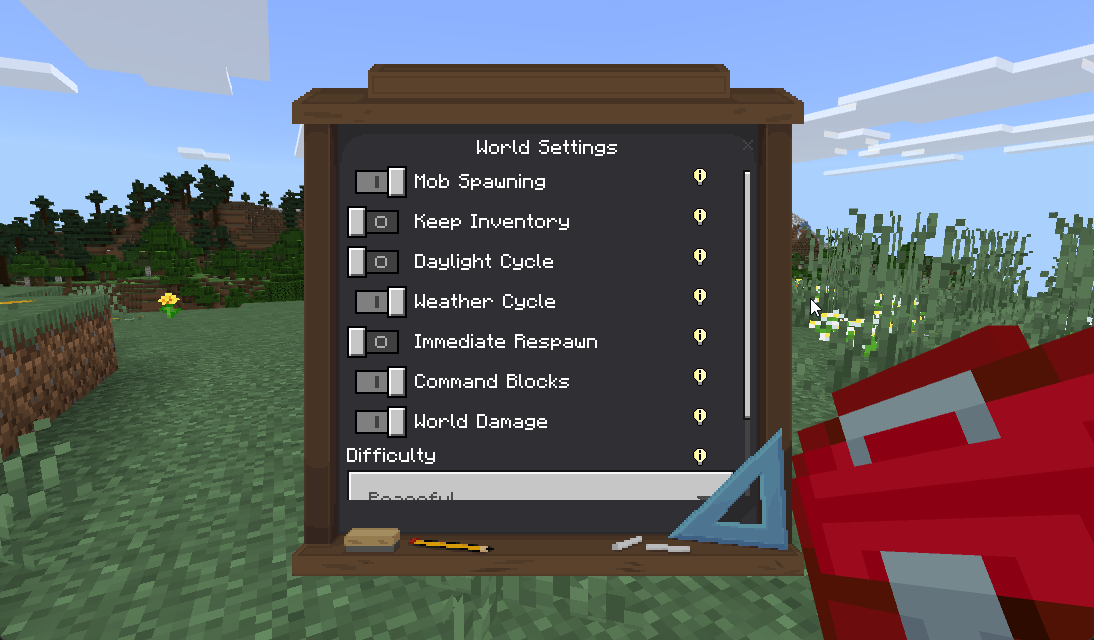
Steps:
- Right-click the Educator Toolbox in your hotbar
- Click World Management
- Click World Settings
- Toggle any setting ON or OFF
Tip
Most classroom activities work best with: Mob Spawning OFF, Keep Inventory ON, Daylight Cycle OFF.
Available Settings
🐾 Mob Spawning
Controls whether creatures (animals, monsters) spawn naturally in the world.
Info
Turning Mob Spawning OFF prevents NEW creatures from spawning, but doesn't remove existing ones. Use Clear Entities to remove mobs already in the world.
✅ Toggle OFF when:
- Building activities where mobs are distracting
- You don't want monsters interrupting students
- Peaceful environment needed for focused work
✅ Toggle ON when:
- Survival challenges that involve fighting mobs
- Resource gathering that requires animals
- Adventure activities with creatures
💎 Keep Inventory
When enabled, players keep all items when they die instead of dropping them at their death location.
Tip
Keep Inventory ON is highly recommended for building projects and creative activities. It prevents frustration from accidental deaths.
✅ Toggle ON when:
- Building projects (prevents losing materials on accidental death)
- You don't want death to be punishing
- Focus is on creativity, not survival
✅ Toggle OFF when:
- Survival challenges where risk/reward matters
- Teaching consequences and item management
🌞 Daylight Cycle
Controls whether time passes or stays frozen. Same as Environment → Daytime Cycle.
✅ Toggle OFF when:
- You want consistent lighting
- Time changes are distracting
- Taking screenshots/videos
✅ Toggle ON when:
- Teaching about day/night cycles
- Want natural time progression
🌦️ Weather Cycle
Controls whether weather changes over time. Same as Environment → Weather Cycle.
✅ Toggle OFF when:
- Want consistent weather
- Rain is distracting
✅ Toggle ON when:
- Teaching about weather patterns
- Want natural weather variation
🔄 Immediate Respawn
Players skip the death screen and respawn instantly instead of seeing death details.
Tip
Turn Immediate Respawn ON to minimize interruptions. Students won't get stuck on death screens during class activities.
✅ Toggle ON when:
- Death isn't important to the activity
- Want minimal interruption from death
✅ Toggle OFF when:
- Death screen provides useful information
- Want students to think before taking risks
🔧 Command Blocks
Enable or disable command block functionality for advanced students.
Danger
Command blocks are powerful tools that can run game commands. Only enable this for advanced students or technical lessons.
✅ Toggle ON when:
- Advanced students are using command blocks
- Technical Minecraft lessons
✅ Toggle OFF when:
- Preventing students from using command blocks
- Not relevant to the lesson
💥 World Damage
Controls whether environmental damage occurs (fire, lava, falling, drowning, etc.).
Info
World Damage only affects environmental damage. Combine with Manage Health → Enable Damage OFF for complete invulnerability.
✅ Toggle OFF when:
- Building activities where falling damage is annoying
- You don't want students interrupted by damage
- Creating a completely safe environment
✅ Toggle ON when:
- Survival challenges where environmental hazards matter
- Teaching risk assessment
Difficulty Modes
Difficulty Modes
🎮 Game Difficulty
Sets the overall game difficulty level, affecting mob strength, damage, and hunger.
🕊️ Peaceful Difficulty
Effects: - ✅ No hostile monsters spawn - ✅ Health regenerates automatically - ✅ No hunger depletion - ✅ Existing hostile mobs are removed
Best for: - Most building and creative activities - Young students or beginners - Activities where combat is unwanted
🟢 Easy Difficulty
Effects: - ⚔️ Monsters spawn but deal less damage - 🍖 Hunger depletes slowly - ❤️ Starvation reduces health to 5 hearts (won't kill you)
Best for: - Gentle introduction to survival mechanics - Activities with light survival elements - Students new to Minecraft combat
🟡 Normal Difficulty
Effects: - ⚔️ Standard monster damage - 🍖 Normal hunger depletion rate - ❤️ Starvation reduces health to 0.5 hearts (almost kills you)
Best for: - Standard survival activities - Balanced challenge level - Students familiar with Minecraft
🔴 Hard Difficulty
Effects: - ⚔️ Monsters deal maximum damage - 🍖 Hunger depletes faster - ❤️ Starvation can kill you - 🧟 Zombies can break doors
Best for: - Advanced survival challenges - Experienced players - Activities requiring high difficulty
Tip
For most classroom building activities, use Peaceful difficulty or turn Mob Spawning OFF with Keep Inventory ON. This creates a safe, frustration-free environment.
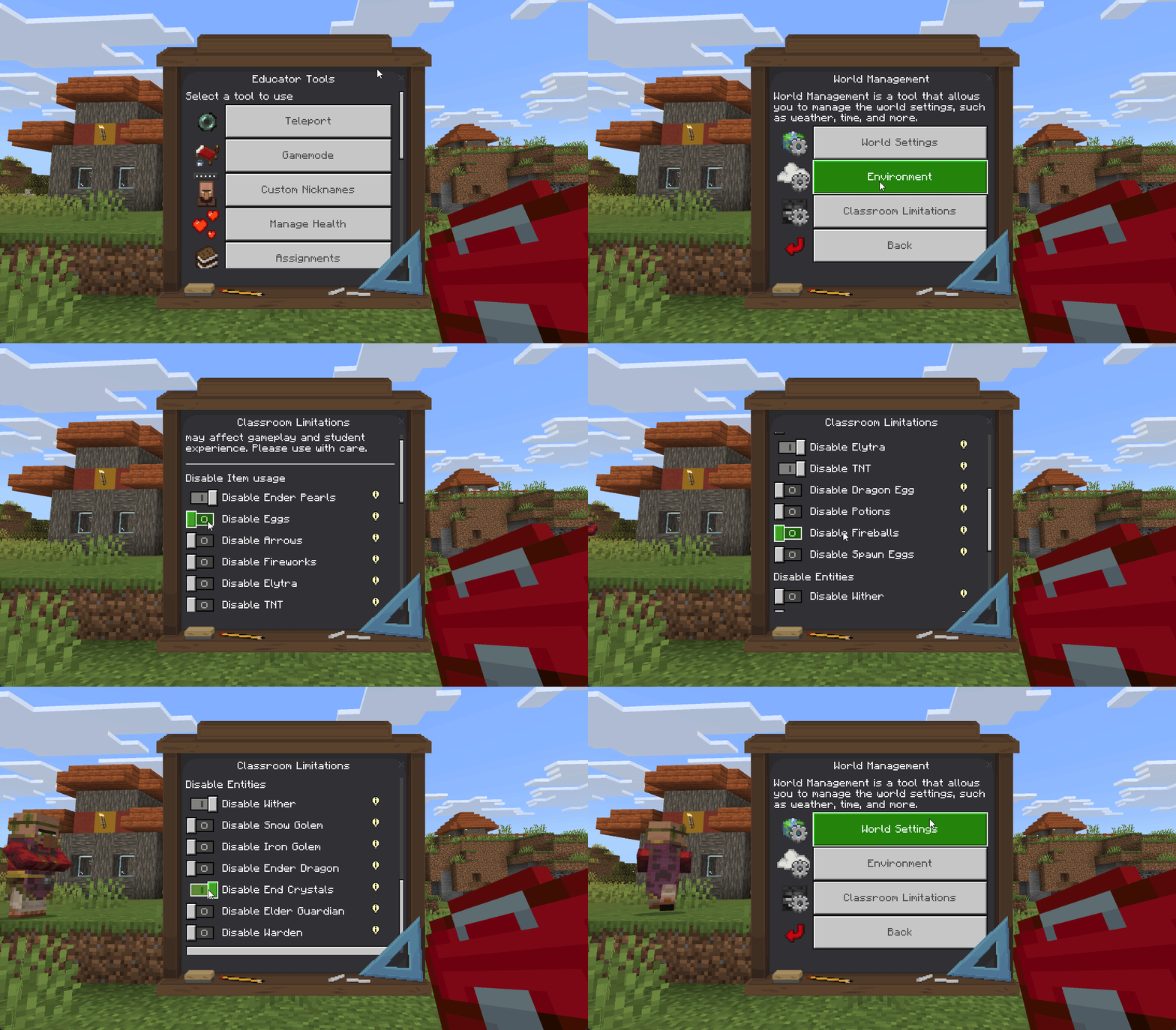
🚫 Classroom Limitations
Block specific items and creatures to create a controlled, safe learning environment by removing distractions or dangerous elements.
Note
Teachers are completely exempt from all classroom limitations. You can always use any restricted item or spawn any restricted entity.
🎯 When to Use It
- 🛡️ Safety: Prevent students from using disruptive items (TNT, arrows)
- 🎯 Focus: Remove tools that allow escaping or avoiding the activity
- 📚 Controlled environment: Block items that don't fit the lesson
- 🔒 Prevent griefing: Stop students from breaking each other's builds
- 👶 Age-appropriate: Remove violent or complex game elements
How to Use It
Steps:
- Right-click the Educator Toolbox in your hotbar
- Click World Management
- Click Classroom Limitations
- Navigate between Disable Item usage and Disable Entities
- Toggle individual restrictions ON or OFF
- Changes apply immediately
Info
When you enable an item restriction, the item is automatically removed from all student inventories immediately. Students will see a chat message if they try to use a restricted item.
Item Restrictions
When you enable an item restriction, the system automatically:
- ✅ Removes the item from all student inventories
- ✅ Prevents students from using the item
- ✅ Blocks students from obtaining the item
- ✅ Shows a chat message when students try to use it
- ✅ Teachers are not affected - you can still use most items
Available Item Restrictions
🔮 Ender Pearls
What they do: Teleport players when thrown
Why restrict: Students can escape locked areas or bypass boundaries
When to restrict:
- Activities with movement limits
- Guided lessons with boundaries
- When using Lock Players
🥚 Eggs
What they do: Can be thrown, sometimes spawn chickens
Why restrict: Used to spam or distract other students
When to restrict:
- Focused activities
- Preventing griefing behavior
- When animal spawning is unwanted
❄️ Snowballs
What they do: Throwable projectiles that can knock back players and mobs
Why restrict: Used to spam, distract, or annoy other students
When to restrict:
- Focused activities
- Preventing disruptive behavior
- Building projects where interruptions are unwanted
- When combat or projectiles aren't part of the lesson
🏹 Arrows
What they do: Projectiles fired from bows, can damage players/mobs
Why restrict: Prevent students from shooting each other or mobs
When to restrict:
- Building activities
- Non-combat lessons
- Peaceful classroom environments
Tip
Restrict arrows during building projects to prevent students from distracting or harming each other.
🪣 Buckets
What they do: Collect and place water, lava, and various fish/creature types
Why restrict: Can flood builds with water, create dangerous lava, or be used to grief
When to restrict: - Building competitions where water/lava placement is problematic - Preventing students from flooding areas or creating lava hazards - Activities where liquid placement could disrupt the lesson - When you want controlled use of water/lava mechanics
Note
This includes: empty buckets, water, lava, cod, salmon, pufferfish, tropical fish, axolotl, and tadpole buckets. Milk and powder snow buckets are intentionally not restricted.
Warning
Lava buckets are particularly dangerous as they can quickly destroy builds and harm players. Consider restricting buckets during most building activities.
🫀🪽 Elytra
What they do: Wings that allow gliding through the air
Why restrict: Students can fly away from activity areas
When to restrict:
- Movement-restricted activities
- When flying creates unfair advantages
- Ground-based building projects
🎆 Fireworks
What they do: Decorative explosions, boost Elytra flight
Why restrict: Visual distraction, allows escaping with Elytra
When to restrict:
- Focused work time
- When visual distractions are problematic
- If Elytra are also restricted
💣 TNT
What they do: Explosive blocks that destroy terrain and builds
Why restrict: Can grief other students' work, destructive
When to restrict:
- Building projects
- Any time explosions aren't part of the lesson
- Preventing griefing
Warning
TNT is highly destructive and can destroy student builds instantly. This is one of the most commonly restricted items in classrooms.
🥚 Dragon Egg
What they do: Rare decorative block from defeating Ender Dragon
Why restrict: Teleports randomly when clicked, causing chaos
When to restrict:
- Most activities (rarely relevant to lessons)
- When unpredictable block behavior is problematic
🧪 Potions
What they do: Give effects like invisibility, speed, strength
Why restrict: Effects can be disruptive or create unfair advantages
When to restrict:
- Competitive activities requiring fairness
- When invisibility allows avoiding participation
- Building activities where effects are distracting
Entity Restrictions
When you enable an entity restriction, the system automatically:
- ✅ Prevents the creature from spawning
- ✅ Shows a chat message if someone tries to spawn it
- ✅ Teachers are NEVER affected - you can still spawn entities
Available Entity Restrictions
💀 Wither
What it is: Powerful hostile boss that destroys blocks with explosive projectiles
Why restrict: Extremely destructive, can ruin entire builds and landscapes
When to restrict: Almost always (rarely appropriate for classroom)
Warning
The Wither is one of the most destructive entities in Minecraft. It can destroy large areas quickly and is very difficult to contain. Keep this restricted unless specifically teaching about boss fights.
🐉 Ender Dragon
What it is: Final boss of Minecraft, flies through blocks
Why restrict: Destructive, chaotic, difficult to control
When to restrict: Almost always (unless specifically teaching about it)
Warning
The Ender Dragon destroys most blocks it flies through. It's extremely disruptive and hard to control in classroom environments.
🌑 Warden
What it is: Extremely powerful blind monster from deep underground
Why restrict: Nearly impossible to defeat, can instakill players in full armor
When to restrict: Most activities (too dangerous for casual play)
Danger
The Warden is the most powerful hostile mob in Minecraft. It can kill players in 2-3 hits even with full diamond armor. Avoid allowing this in classrooms.
🔱 Elder Guardian
What it is: Underwater boss that applies Mining Fatigue effect
Why restrict: Makes mining extremely slow and frustrating, very disruptive
When to restrict:
- Building activities
- Mining projects
- Any activity requiring block breaking
Info
Mining Fatigue makes breaking blocks take 5-10x longer. This effect can severely disrupt classroom activities.
🤖 Iron Golem
What it is: Large protective creature made from iron blocks
Why restrict: Can harm students, uses up iron resources
When to restrict:
- When you don't want students creating golems
- Limited resources activities
- When golem damage is problematic
⛄ Snow Golem
What it is: Friendly snow creature that throws snowballs
Why restrict: Leaves snow trails everywhere, can be spammy
When to restrict:
- When snow trails mess up builds
- Indoor building projects
- When snowball spam is annoying
Typical Classroom Setup
Tip
This is a recommended starting configuration for most general classroom activities. Adjust based on your specific lesson needs.
Recommended Configuration
🔴 Item Restrictions (Turn ON):
- ✅ TNT (prevents griefing)
- ✅ Ender Pearls (prevents escaping)
- ✅ Arrows (prevents combat)
🔴 Entity Restrictions (Turn ON):
- ✅ Wither (extremely destructive)
- ✅ Ender Dragon (chaotic)
- ✅ Warden (too powerful)
🟢 Keep Available:
- ❌ Eggs, Fireworks, Elytra (unless specifically problematic)
- ❌ Potions, Dragon Egg (unless needed for lesson)
- ❌ Iron Golem, Snow Golem (can be fun/educational)
Note
Teachers can always use restricted items and spawn restricted entities. You are completely exempt from all limitations.
💡 Classroom Limitations Tips
Key Features
Automatic Enforcement:
- Restricted items are removed from student inventories immediately
- Students see a chat message when attempting to use restricted items
- Changes apply instantly - no restart needed
Teacher Exemption:
- You can always use any restricted item
- You can always spawn any restricted entity
- Restrictions only affect students
Flexible Control:
- Toggle restrictions on/off freely throughout class
- Adjust for different activities
- Combine with World Settings for complete environment control
Example Classroom Configurations
🏗️ Pure Building Activity:
- Restrict: TNT, Ender Pearls, Arrows, Wither, Ender Dragon
- Allow: Everything else
- World Settings: Mob Spawning OFF, Keep Inventory ON, Peaceful Difficulty
🌍 Peaceful Exploration:
- Restrict: TNT, Wither, Ender Dragon, Warden
- Allow: Most tools and items
- World Settings: Difficulty Peaceful, Mob Spawning OFF
⚔️ Controlled Survival Challenge:
- Restrict: Ender Pearls, TNT, Wither, Ender Dragon
- Allow: Combat items (arrows, potions)
- World Settings: Mob Spawning ON, Difficulty Easy, Keep Inventory ON
📚 Guided Tour/Presentation:
- Restrict: TNT, Ender Pearls, Arrows, Eggs, Elytra
- Allow: Basic items only
- World Settings: Always Day, Mob Spawning OFF, use Lock Players
🎨 Creative Showcase:
- Restrict: TNT, Wither, Ender Dragon, Warden
- Allow: Decorative items (fireworks OK if supervised)
- World Settings: Always Day, Weather Clear, Mob Spawning OFF
🔗 Related Tools
World Management works great with other Educator Toolbox features:
- ☀️ Always Day + Focus Mode → Clear visibility during focused activities
- 🚫 Disable TNT + Lock Players → Create safe build zones
- 💚 Keep Inventory + Manage Health → Invulnerable students for stress-free building
- ⚙️ World Settings + Classroom Limitations → Complete environment control
Tip
Combine multiple World Management features to create the perfect environment for each activity. For example, use Always Day + Mob Spawning OFF + Keep Inventory ON + TNT Restricted for ideal building conditions.
📚 Next Steps
Ready to explore more Educator Toolbox features?
- Student Management Tools - Teleport students, create teams, manage inventories
- Classroom Control Tools - Focus Mode, Timer, Assignments, and more
- Essential Tools - Clear entities, manage health, and other core features
- All Features Guide - Complete tool reference
Need Help? Check the FAQ and Troubleshooting page for common questions and solutions.