🔤 Letter Blocks - Getting Started
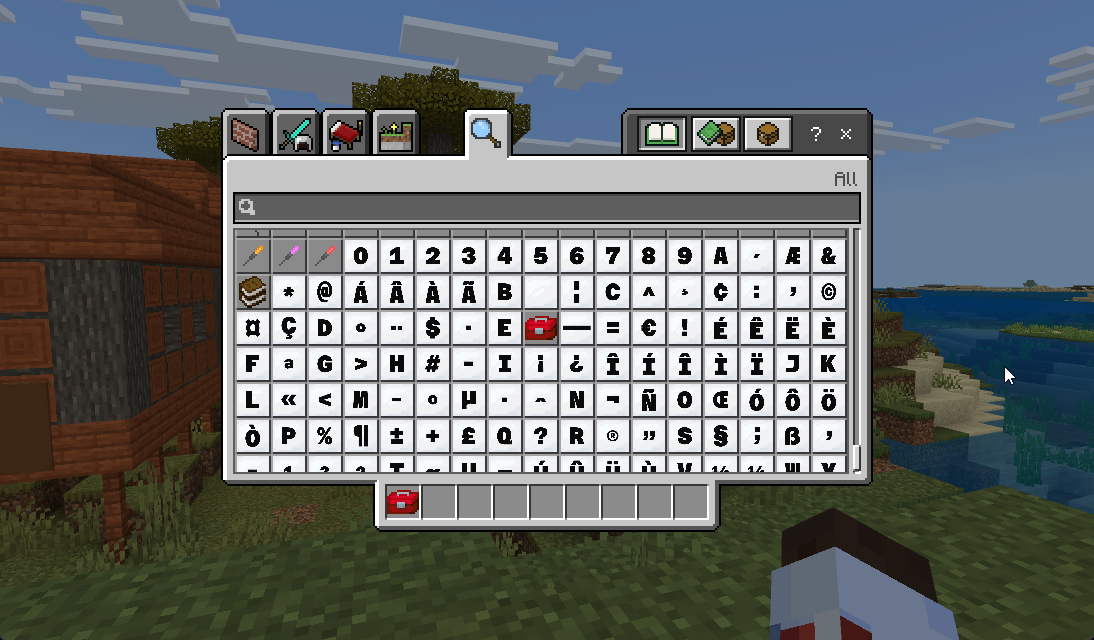
Letter Blocks are special building blocks that display letters, numbers, and symbols. They're perfect for creating words, equations, signs, and educational displays in your Minecraft world.
What are Letter Blocks?
Note
Letter Blocks are Minecraft blocks with letters, numbers, or symbols on them. Instead of being made of wood or stone, each block shows a character. You can place them like regular blocks to spell words, create math problems, or make signs.
Think of them as: Physical Scrabble tiles or alphabet blocks that you can build with in 3D space.
What's Included
🔤 Letters - Click to expand character list
- Uppercase: A, B, C, D, E, F, G, H, I, J, K, L, M, N, O, P, Q, R, S, T, U, V, W, X, Y, Z
- Lowercase: a, b, c, d, e, f, g, h, i, j, k, l, m, n, o, p, q, r, s, t, u, v, w, x, y, z
🔢 Numbers - Click to expand character list
- Digits: 0, 1, 2, 3, 4, 5, 6, 7, 8, 9
➕ Math Symbols - Click to expand character list
- Operators: + (plus), - (minus), × (multiply), ÷ (divide), = (equals)
- Other symbols: < (less than), > (greater than), ± (plus-minus)
📝 Punctuation - Click to expand character list
- Common marks: . (period), , (comma), ? (question mark), ! (exclamation point)
⭐ Special Characters - Click to expand character list
- Checkmarks: ✓ (correct)
- Crosses: ✗ (incorrect)
- Arrows: → ↑ ↓ ←
- Currency: $ (dollar), € (euro)
- Parentheses: ( ) [ ] { }
Total: Hundreds of blocks covering almost any character you might need!
How to Get Letter Blocks
Info
Letter Blocks require Creative Mode to access from the inventory. Make sure you're in Creative Mode before trying to get letter blocks.
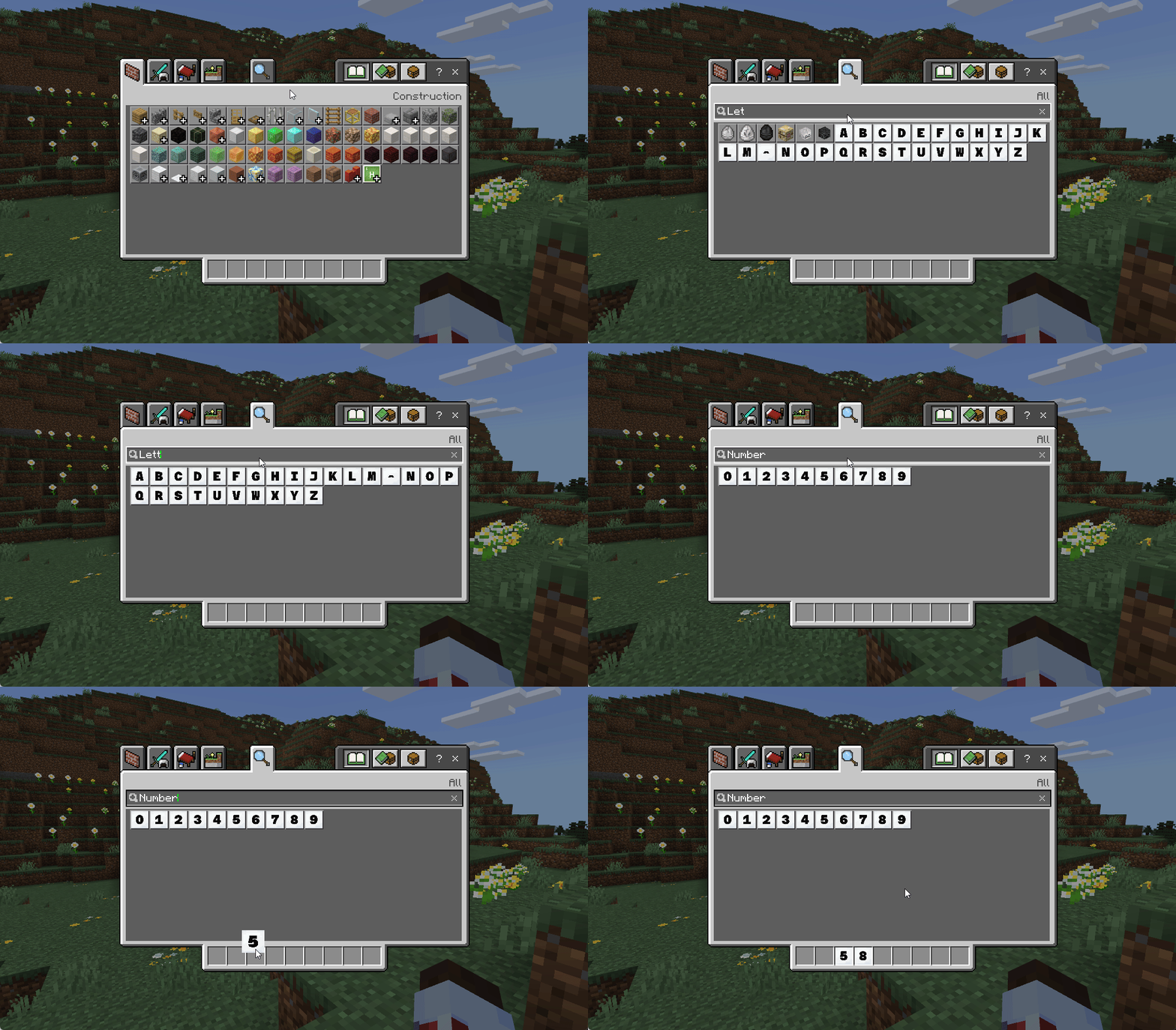
🎨 Method 1: Creative Mode Inventory (Easiest)
- Make sure you're in Creative Mode
- See Gamemode Guide if you need to switch
- Open your inventory (press E key)
- Click the Search tab (magnifying glass icon)
- Type "letter" or "block" in the search box
- Scroll through the results - all letter blocks will appear
- Click any block to add it to your inventory
- Drag it to your hotbar for easy access
🧰 Method 2: Educator Tools Menu
- Right-click the Educator Toolbox in your hotbar
- Look for Letter and Number Blocks option (if available)
- Browse and select blocks to add to your inventory
Note: This method may not be available in all versions. Method 1 (Creative Inventory) always works.
How to Use Letter Blocks
📍 Placing Blocks
- Select a letter block in your hotbar (bottom row of inventory)
- Look at the surface where you want to place it
- Right-click (or tap on mobile) to place the block
- The letter block appears as a 1×1×1 cube with the character visible
🔤 Building Words
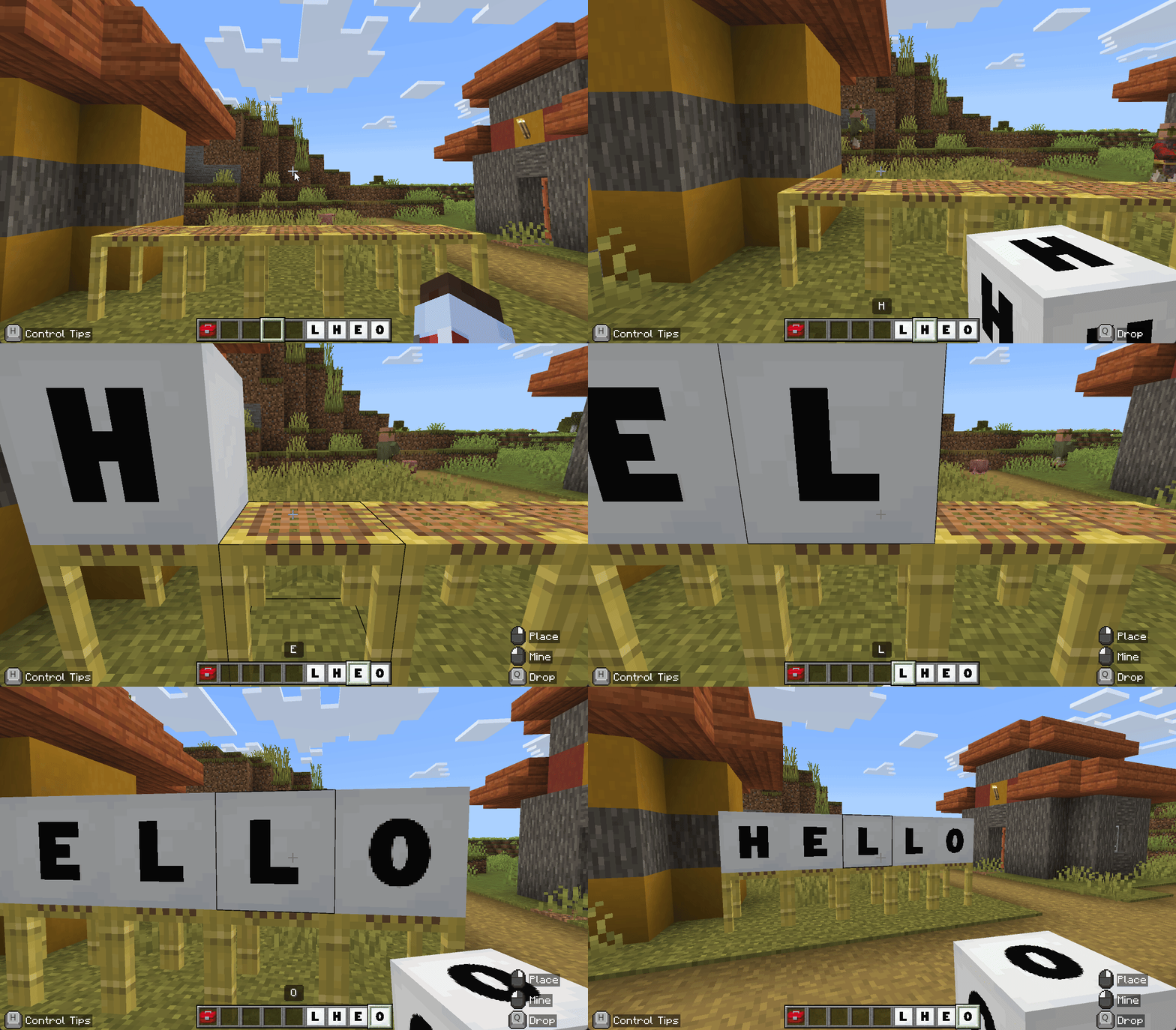
To spell a word like "HELLO":
- Get the blocks: H, E, L, O from your inventory
- Place the H block
- Place the E block next to it
- Continue placing L, L, O in a row
- You now have "HELLO" spelled out!
Tip
Place blocks at eye level or higher so they're easy to read. You can stack them or arrange them in any pattern for creative displays.
🔨 Breaking/Removing Blocks
- Creative Mode: One click breaks the block instantly
- Survival Mode: Hold click to break the block (takes longer)
- Broken blocks drop as items you can pick up and reuse
📐 Stacking and Arranging
Tip
Letter blocks work just like regular Minecraft blocks. Here are the best practices for arranging them:
- ✅ Stack them vertically (great for tall signs)
- ✅ Place them in rows (spell words horizontally)
- ✅ Arrange them in grids (create crossword-style layouts)
- ✅ Build 3D shapes with them
- ✅ Place them on walls, floors, ceilings - any surface
Basic Building Tips
📝 For Words and Sentences
Horizontal lines:
- Easy to read from left to right
- Place blocks side-by-side at the same height
- Good for simple messages and signs
Vertical stacks:
- Works well for banners or tall signs
- Stack blocks on top of each other
- Great for player names or titles
Mixed layouts:
- Combine horizontal and vertical for creativity
- Create crossword-style patterns
- Use different heights for visual interest
🔢 For Math Problems
Horizontal equations:
2 + 2 = 4
Vertical equations:
  5
+ 3
---
  8
Tip
Use arrow blocks (→) to show "solve this" or point to answers
🪧 For Signs and Labels
Simple signs:
- Spell words like "ENTRANCE," "EXIT," "LIBRARY"
- Place at doorways or important locations
- Use all capitals for easier reading from a distance
Directional signs:
- Combine words with arrow blocks
- Example: "CAFETERIA" followed by → block
Informational displays:
- Create classroom rules or instructions
- Build vocabulary words with definitions
- Make educational posters in 3D
Quick Ideas to Try
🌟 Beginner Activities - Click to expand
1. Spell Your Name 📛
- Get the letter blocks for your name
- Place them in a row
- Try using different colors or arranging them creatively
2. Simple Math ➕
- Build "1 + 1 = 2"
- Try a subtraction problem
- Create a times table display
3. Make a Sign 🪧
- Spell "WELCOME"
- Place it at the entrance of your build
- Experiment with different layouts
⭐ Intermediate Activities - Click to expand
4. Build a Sentence 📝
- Use letters and punctuation to make a complete sentence
- Example: "HELLO WORLD!"
- Remember spaces between words (leave empty blocks)
5. Create a Word Wall 🧱
- Pick a theme (animals, colors, shapes)
- Build multiple related words
- Arrange them in an interesting pattern
6. Math Challenge Board 🎯
- Build several math problems
- Leave the answers blank
- Have students add the answer blocks
💡 Common Use Cases - Click to expand
Classroom Labeling:
- Label different areas of your Minecraft classroom
- Create station names for learning centers
- Build direction signs for navigation
Vocabulary Displays:
- Spell out vocabulary words students are learning
- Create word families or spelling patterns
- Build sight words for early learners
Math Practice:
- Display equations for students to solve
- Create number lines or counting sequences
- Build multiplication tables or fractions
Creative Writing:
- Build story prompts or writing starters
- Create word banks for creative projects
- Display famous quotes or poetry
Common Questions
Can I change the color or style of letter blocks?
The default blocks have one style. For custom styles and colors, see More Letter Blocks Extension for additional themed sets, or Advanced Letter Blocks Configuration for making your own.
How do I make spaces between words?
Leave empty blocks (don't place anything) between words, or use a plain colored block as a spacer.
Can students use letter blocks?
Yes! In Creative Mode, all students can access letter blocks from their inventory. You can also give them specific blocks using Inventory Management.
Do letter blocks work in Survival Mode?
Yes, they work in all game modes. In Survival, students need to have the blocks in their inventory (you can't "craft" them - use Creative or teacher distribution).
What if I need a character that doesn't exist?
The default set includes most common letters, numbers, and symbols. For additional characters or custom fonts, see More Letter Blocks Extension or Advanced Letter Blocks Configuration.
Next Steps
🚀 Ready to explore more?
- 🎯 Letter Blocks Activities - Classroom activity ideas and teaching tips
- 🎨 More Letter Blocks Extension - Expansion pack with 9 themed backgrounds and more characters
- ⚙️ Advanced Letter Blocks Configuration - Create your own custom letter blocks (advanced)
🔧 Want to use other tools with Letter Blocks?
- 📦 Inventory Management - Give letter blocks to all students at once
- 📍 Teleport - Gather students to see a letter block display
- ⏱️ Timer - Timed spelling or building challenges
❓ Need Help?
Check the FAQ and Troubleshooting page.