🚀 Quick Start Guide
Welcome to Educator Tools! This guide will help you get started in just a few minutes.
What is Educator Tools?
Educator Tools is a collection of classroom management features for Minecraft Education that helps teachers control their virtual classroom. Think of it as your digital teaching assistant - it lets you move students, change game settings, create activities, and keep everyone focused on learning.
Tip
New to Minecraft Education? Don't worry! This guide assumes no prior experience. We'll walk you through everything step by step.
Install in 3 Steps
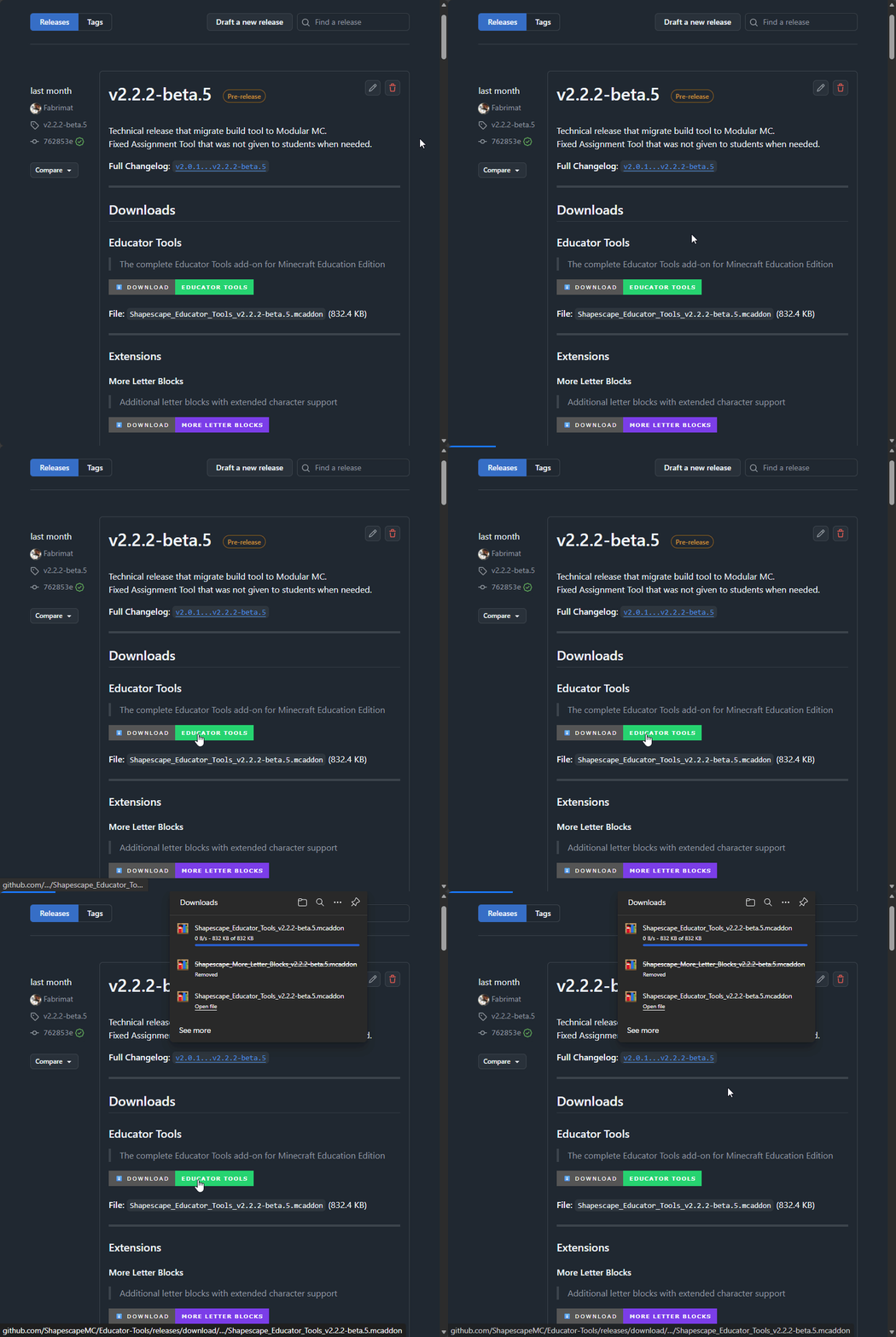
Step 1: Download the Pack
Go to the Downloads page and download the latest version of Educator Tools.
Step 2: Import into Minecraft
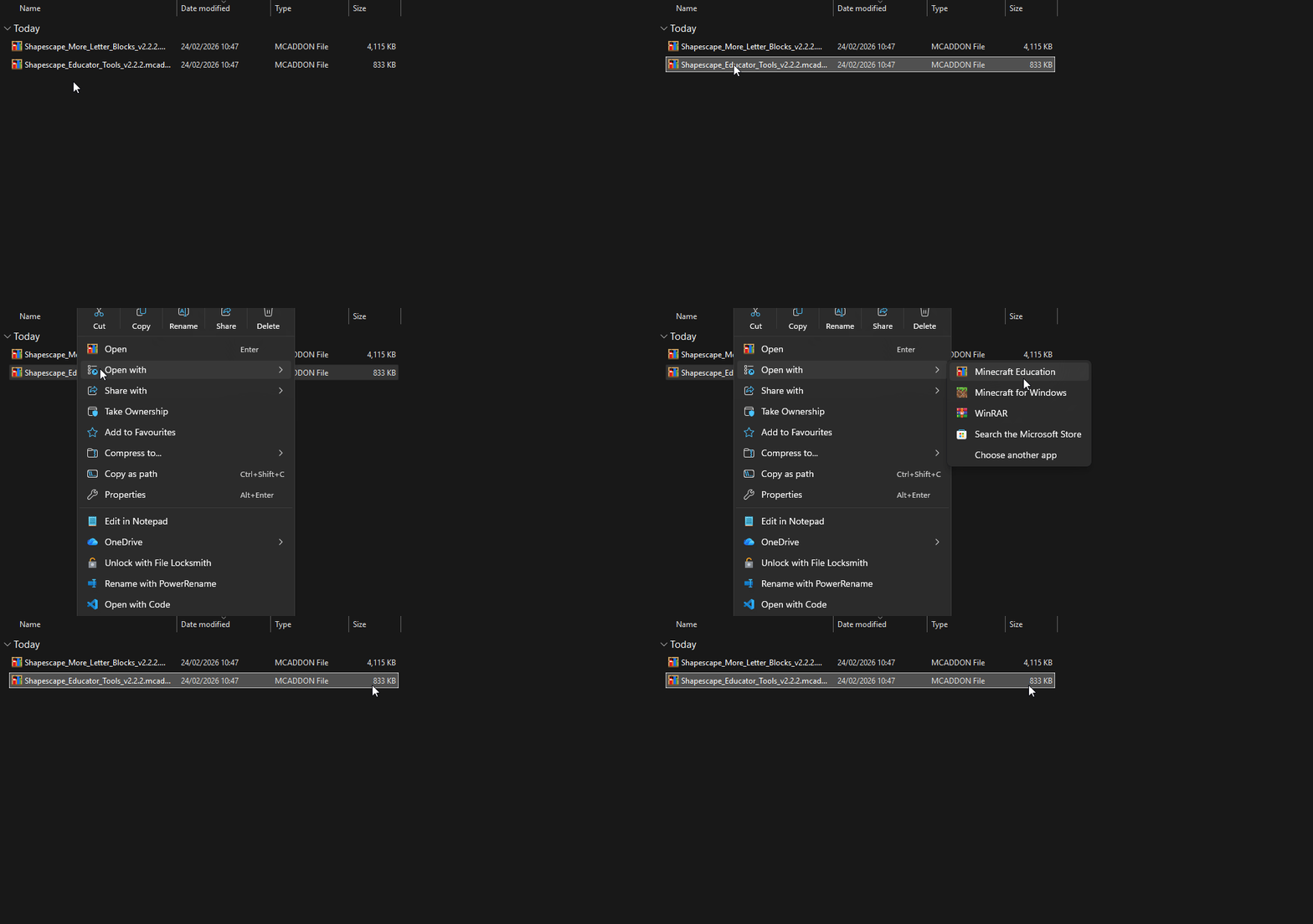
Open Minecraft Education, go to Settings → Storage → Import, and select the downloaded pack.
Step 3: Create or Open a World
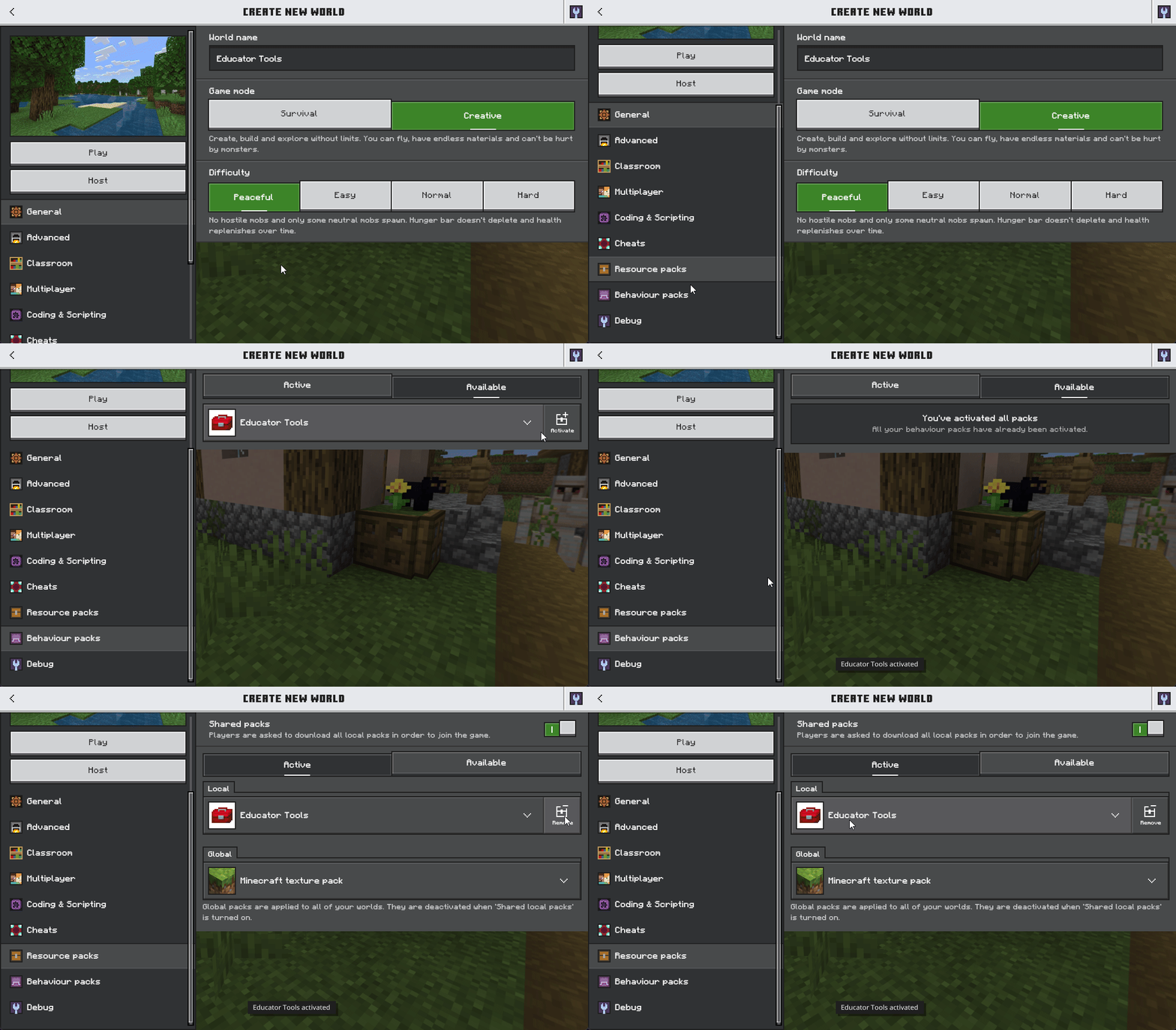
When creating a new world or editing an existing one, activate the Educator Tools pack in the Behavior Packs section.
Note
How to verify it's working: Join the world and look for the Educator Toolbox item in your hotbar (the bottom row of your inventory). If you see it, you're all set!
Need more detailed installation help? See the full Installation Guide.
Your First 5 Minutes
Once you're in the world with Educator Tools active, try these basic actions to get familiar with the tools:
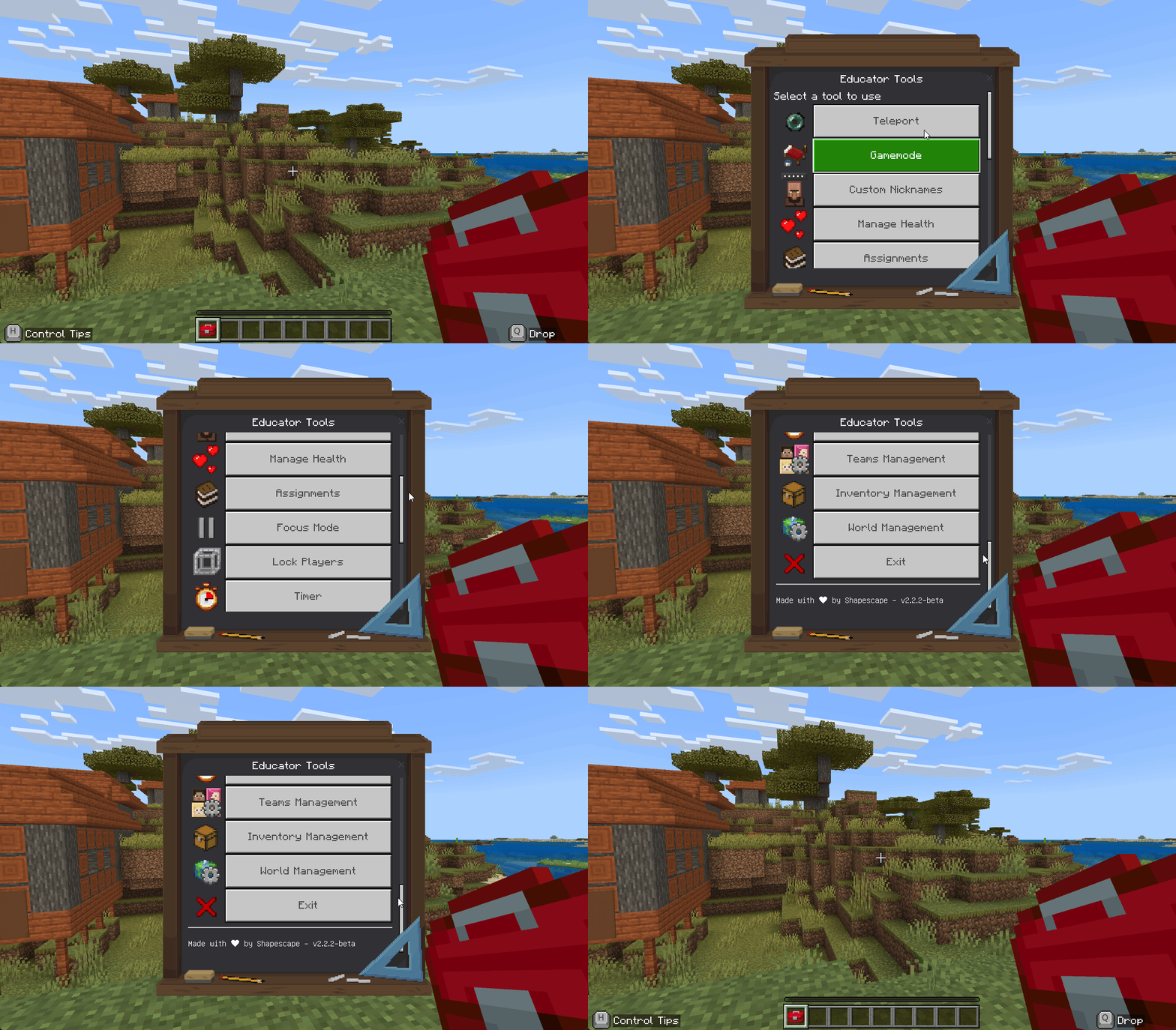
1. Open the Educator Toolbox
⏱️ 30 seconds
How: Right-click the Educator Toolbox item in your hotbar
What you'll see: A menu with all the classroom tools
Tip
Quick Access Tip: Keep the Educator Toolbox in slot 1 of your hotbar. Press the 1 key anytime to quickly select it.
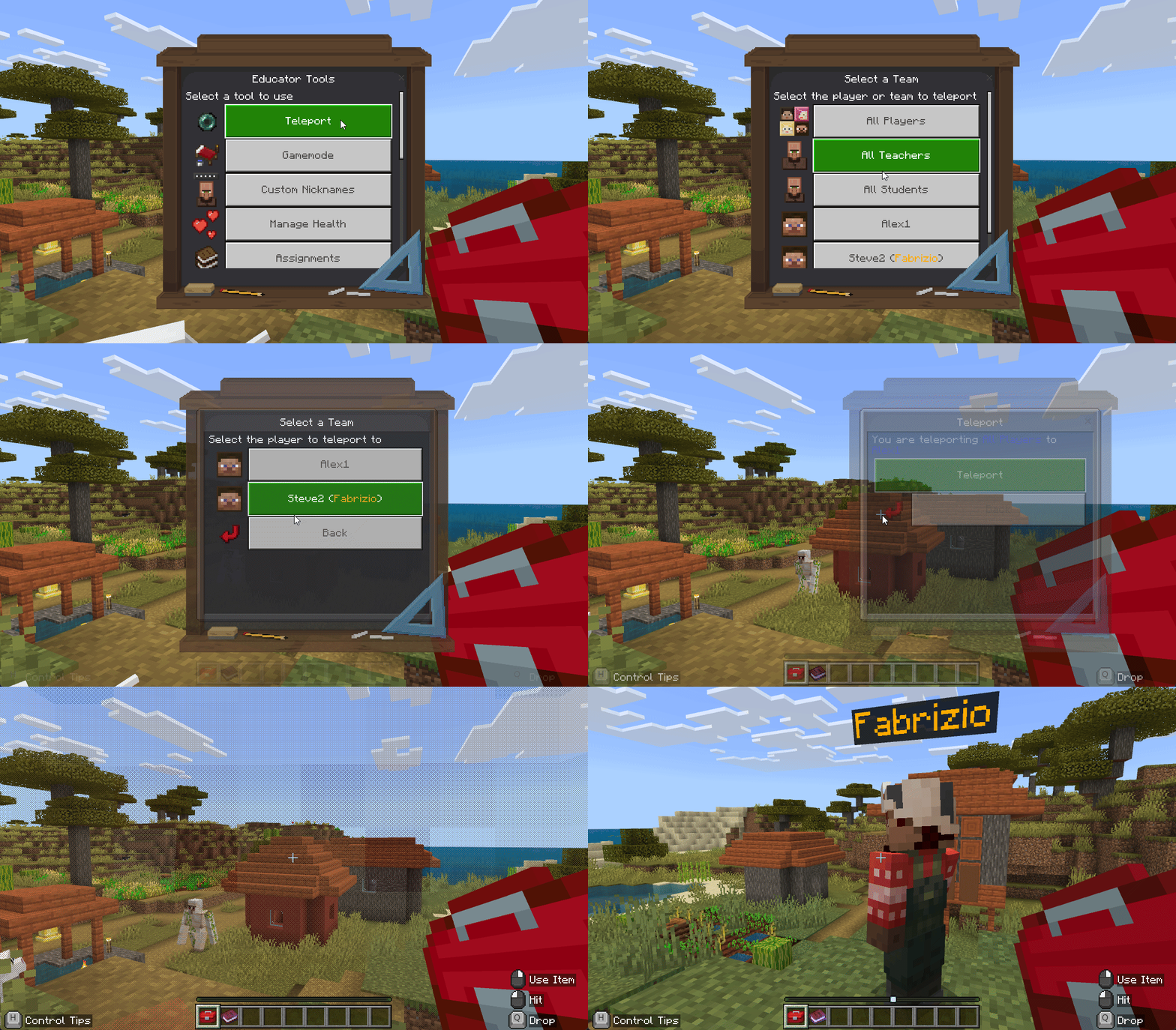
2. Move a Student
⏱️ 1 minute
When to use it: A student is lost or you want to gather everyone together
How to do it: 1. Click Teleport in the toolbox menu 2. Pick the student you want to move 3. Choose where to send them: - To you (most common) - To another student
Info
You need at least 2 players online (you + one student) for teleport to work.
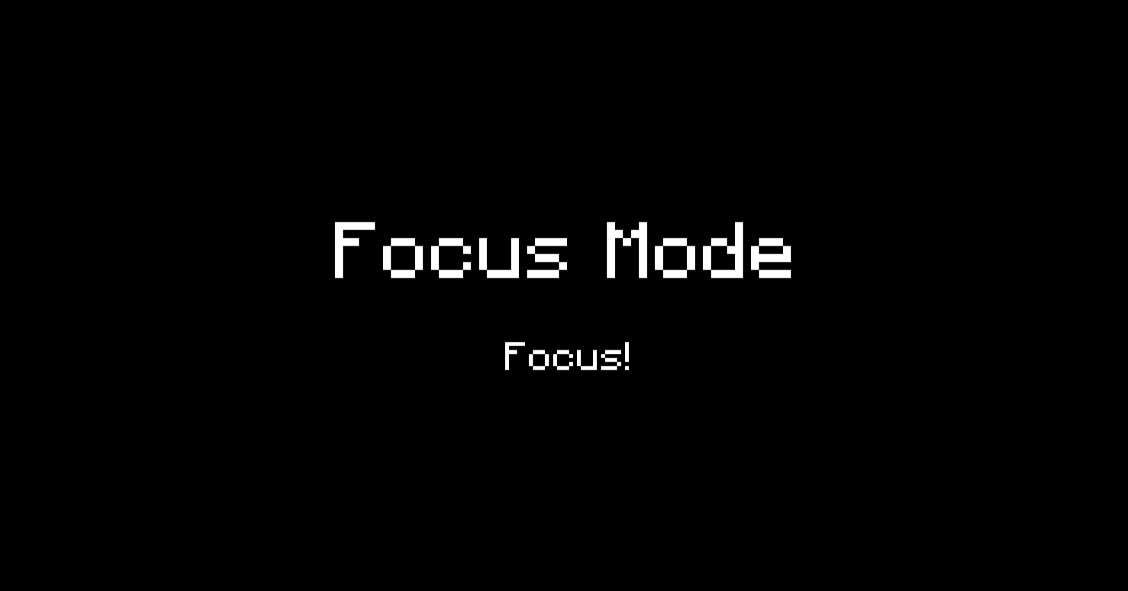
3. Get Everyone's Attention
⏱️ 1 minute
When to use it: You need students to stop and listen
How to do it: 1. Click Focus Mode in the toolbox menu 2. Select the students you want to focus (or choose "All Students") 3. Type a message (like "Please look at the board") 4. Turn Focus Mode ON
What happens: Students' screens will dim and show your message. They can't move or break blocks until you turn Focus Mode off.
Warning
Remember to turn it off! Click Disable Globally in the Focus Mode menu when you're done giving instructions.
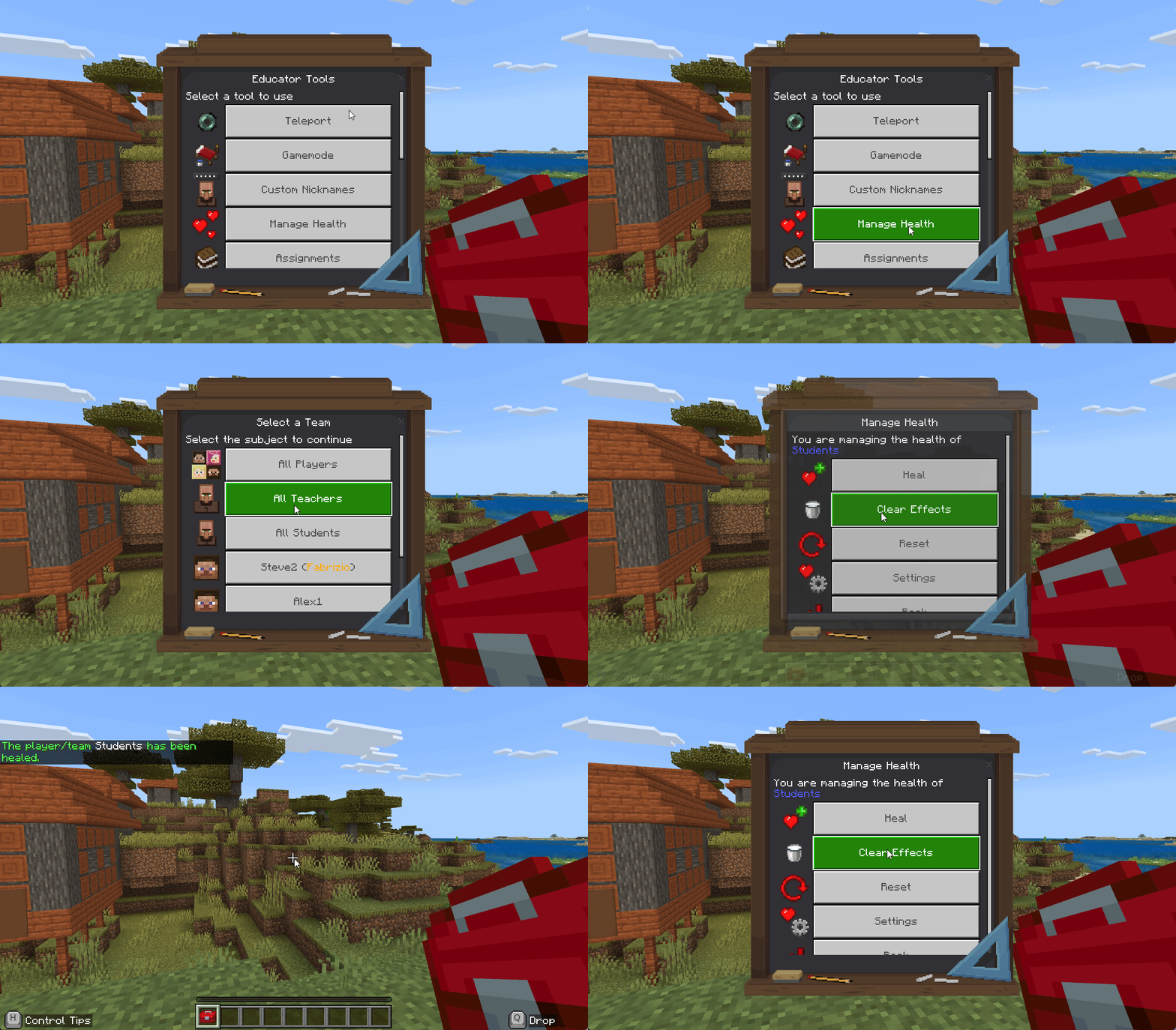
4. Heal and Feed Students
⏱️ 30 seconds
When to use it: Students are running low on health or hunger
How to do it: 1. Click Manage Health in the toolbox menu 2. Select the student or team 3. Click Heal to restore their health and hunger
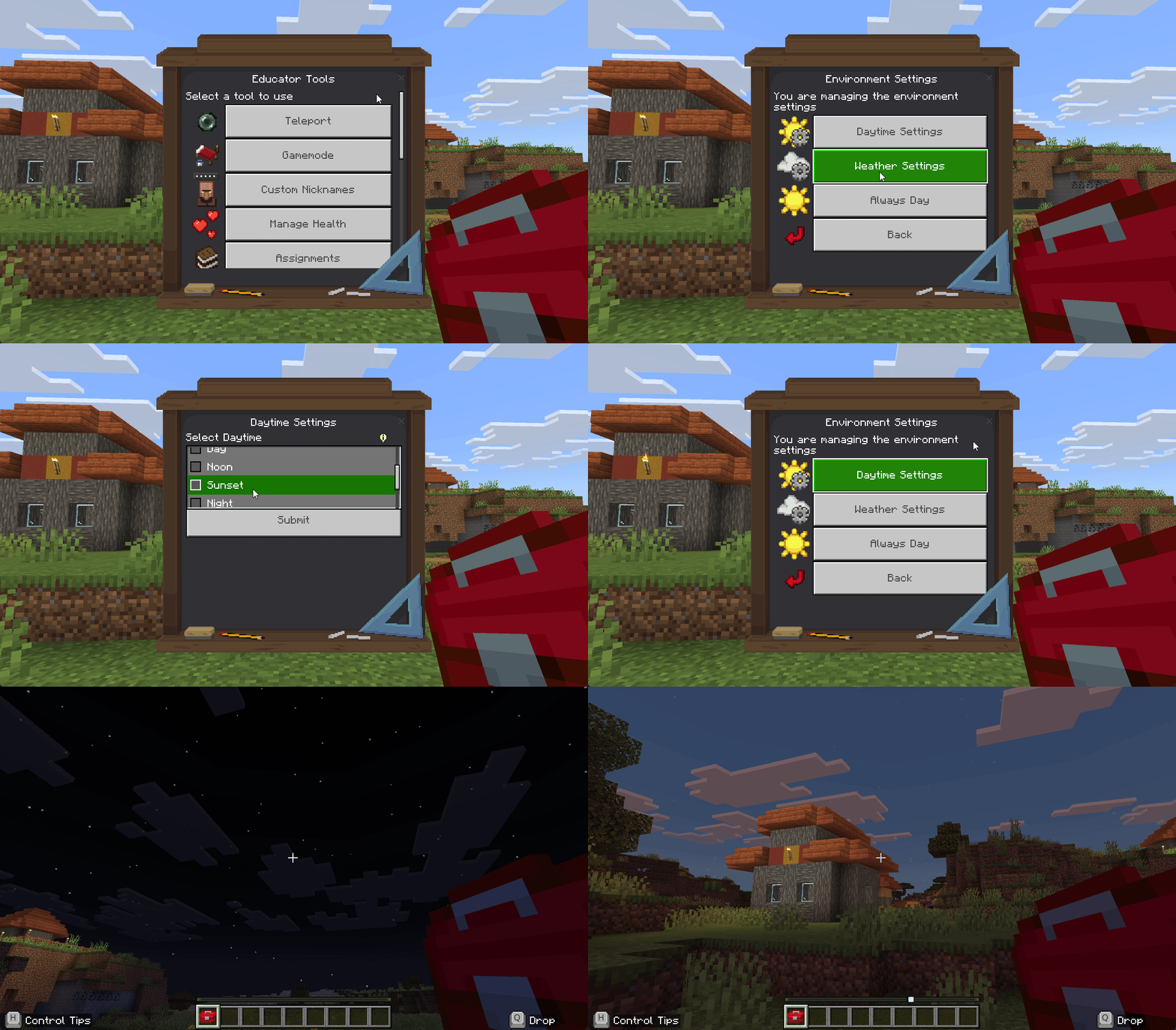
5. Change Time or Weather
⏱️ 30 seconds
When to use it: You want it to be daytime or stop the rain
How to do it: 1. Click World Management in the toolbox menu 2. Click Environment 3. Choose Daytime or Weather settings 4. Choose your preferred time or weather: - Time: Day, Noon, Night, Midnight - Weather: Clear, Rain, Thunder
Tip
Pro Tip: Use Always Day to lock the time at noon. This ensures consistent lighting throughout your lesson!
✅ Success! You're Ready to Teach
You now know the basics! Here's what to explore next:
For Everyday Teaching
- 🎯 Essential Tools - The 5 most important tools (Custom Nicknames, Assignments, Focus Mode, Lock Players, Letter Blocks)
When You Need More
- 👥 Student Management Tools - Teleport, gamemode, teams, and inventory
- 🎓 Classroom Control Tools - Focus mode, timer, assignments, and more
- 🌍 World Management Tools - Time, weather, game rules
- 🔤 Letter Blocks Guide - Build words and equations with special blocks
If You Need Help
- ❓ FAQ and Troubleshooting - Common questions and solutions
- 🆘 Getting Help - How to report problems or ask questions
Tips for New Teachers
Tip
Start with 2-3 tools - Don't try to learn everything at once. Master Custom Nicknames and Focus Mode first, then gradually explore other features.
Note
Practice in an empty world - Create a test world to try out the tools before using them with students. This helps you feel confident during actual lessons.
Info
The toolbox is always with you - If you somehow lose it, you can get it back from the Creative Mode inventory (search for "Educator Toolbox").
You can't break anything! All settings can be changed, Focus Mode can be turned off anytime, and player locks can be removed. Experiment freely and discover what works best for your teaching style!
Next Steps:
- 📚 Learn the essentials: Essential Tools - Master the 5 most important features
- 📖 See everything: All Features Guide - Complete tool reference
- 🏠 Return home: Wiki Home - Main navigation page